

 Honeywell
Printer troubleshooting · Honeywell
Honeywell
Printer troubleshooting · Honeywell
Honeywell printer troubleshooting: error messages and fixes by model
Scheduled visits to check, clean and adjust your printers and spot worn parts before they fail.
In brief. TIMCOD technicians have documented 391 problems across 15 Honeywell printers: industrial (PM43, PF4i, PX6i, MP Compact4 Mark III, MP Nova, PD43, PD45S, PM23c, PM45 and PM45c, PX45 and PX65, PX940), desktop (PC23d, PC42, PC43) and mobile (RP2 and RP4). Several ranges come from Intermec (PM43, PF4i, PX6i) and Datamax-O'Neil (MP Compact4 Mark III, MP Nova); the official product pages state that Honeywell's printer business is now part of Brady. Depending on the model, the same fault is shown as a numeric code (1005, 1022, 1027 on the PX6i, 1005 and 1027 on the PF4i), as a text message (Out of Media, Printhead Lifted), as a red icon or by the colour of a light: note what the printer shows before you search. The most frequent causes remain incorrectly loaded media or ribbon, a raised printhead, a sensor that needs calibrating or a printhead that needs cleaning.
Examples:
Honeywell troubleshooting guides by model
Each guide lists the model's messages and lights, then one entry per fault: cause, steps to follow, and when a technician is needed.
Honeywell industrial printers 11 models
-
Industrial
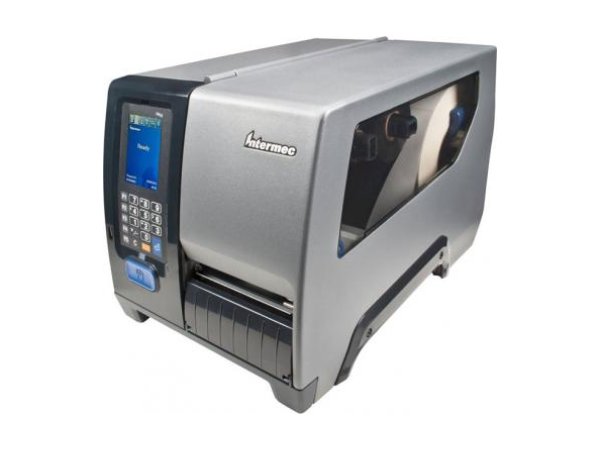
PM43
- Red Media icon
- Red Printhead Lifted icon
- Red Ribbon icon
-
Industrial
PF4i
- Error 1005 (Out of paper)
- Error 1027 (Out of ribbon)
- Error 1031 (Next label not found)
-
Industrial
PX6i
- 1005 Out of paper
- 1027 Out of transfer ribbon
- 1022 Head lifted
-
Industrial
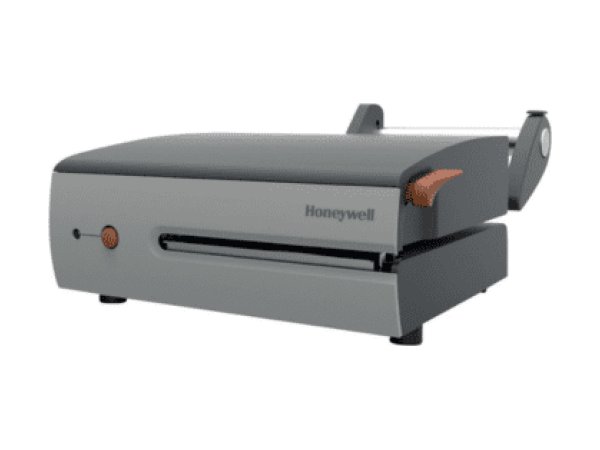
MP Compact4 Mark III
- Solid red light
- Flashing red light
- Orange light
-
Industrial
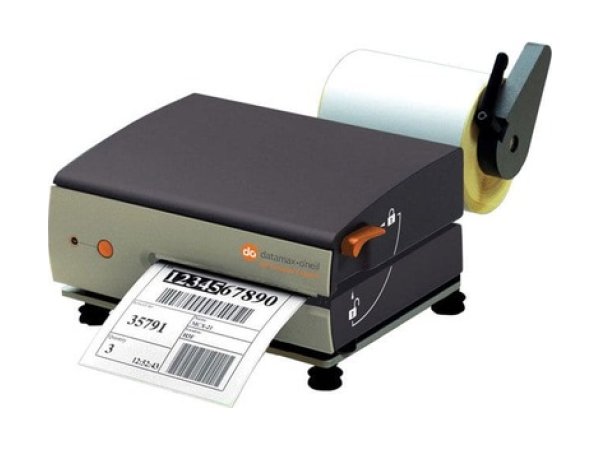
MP Nova
- Flashing red light
- Solid red light
- FAILED CALIBRATION
-
Industrial
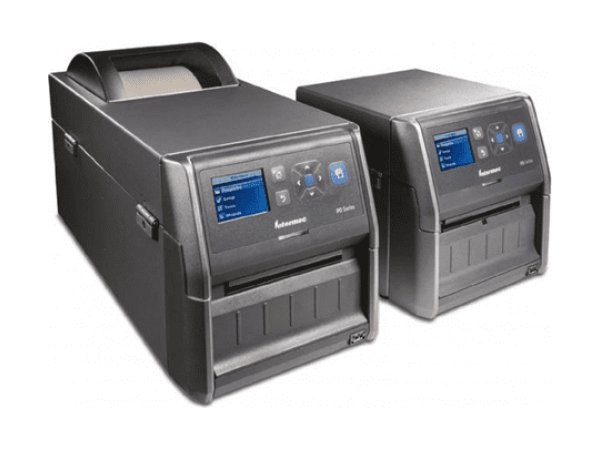
PD43
- Media error icon
- Print mechanism open
- Ready-to-Work light flashing
-
Industrial
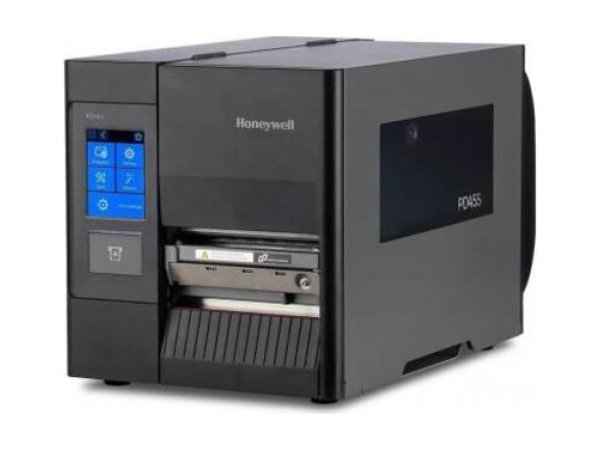
PD45S
- Printhead Lifted
- Out of Media
- Ribbon Installed
-
Industrial
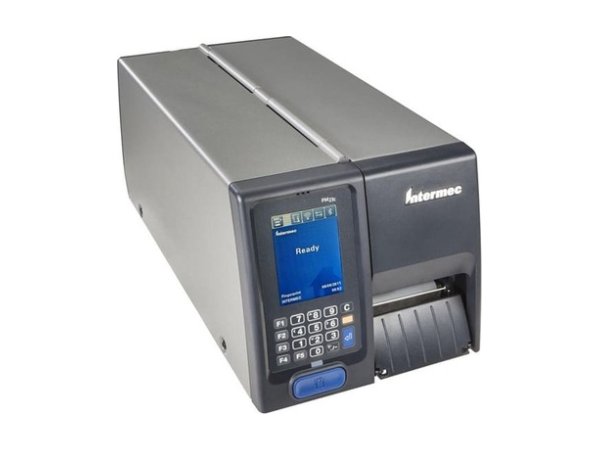
PM23c
- Red Media icon
- Red Printhead Lifted icon
- Amber Maintenance icon
-
Industrial
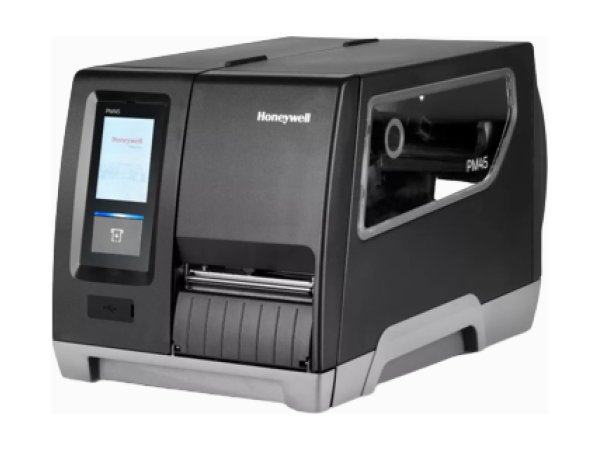
PM45 and PM45c
- Red Media icon
- Red Ribbon icon
- Printhead Lifted
-
Industrial
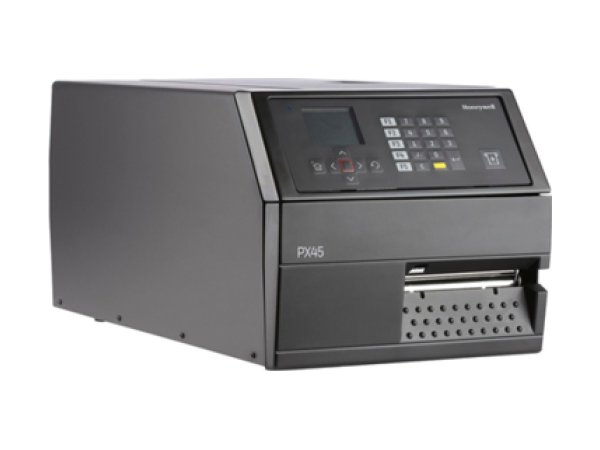
PX45 and PX65
- Cutter Jammed
- Wait for signal
- ENODATAREADY
-
Industrial
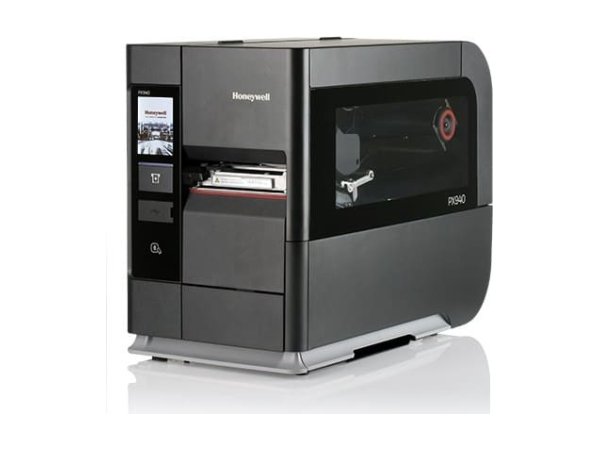
PX940
- Label voided and reprinted
- APPLICATOR PORT: Wait for signal
- Calibration failure (narrow labels)
Honeywell desktop printers 3 models
-
Desktop
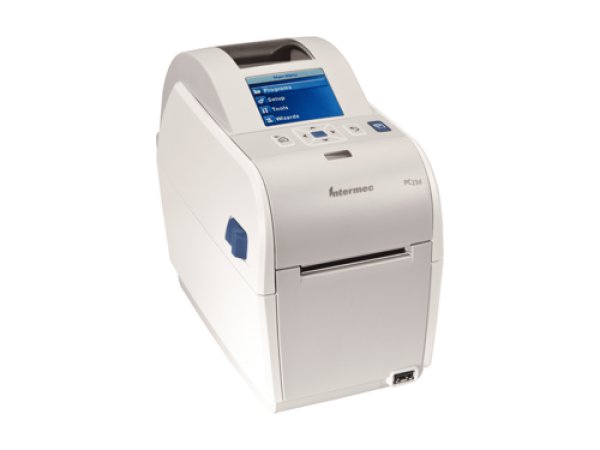
PC23d
- Media is jammed or empty
- Print mechanism is open
- Ready-to-Work flashing
-
Desktop
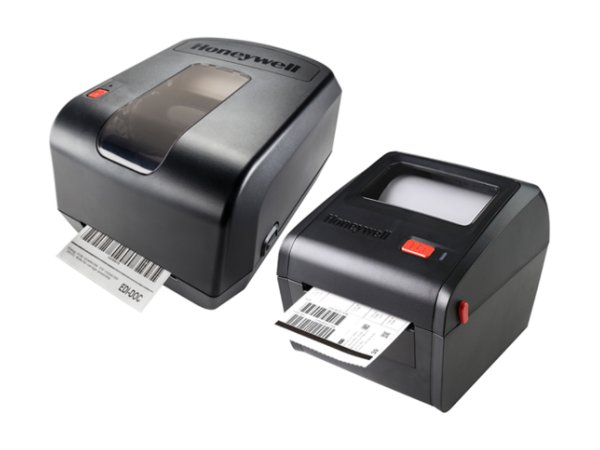
PC42
- Flashing red light
- Printhead Lifted
- Solid orange light
-
Desktop
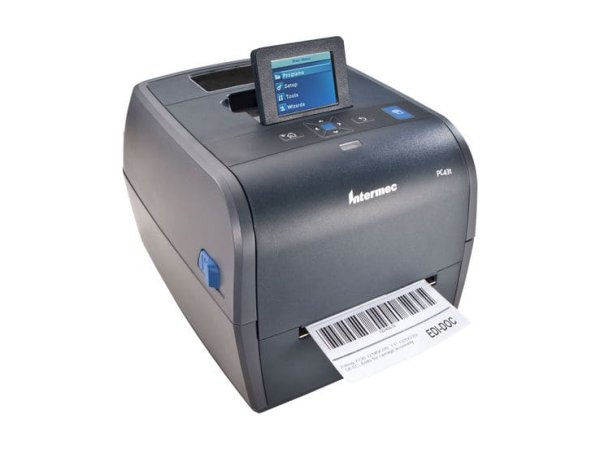
PC43
- Media is jammed or empty
- Ribbon is jammed or empty
- Print mechanism is open
Honeywell mobile printers 1 model
-
Mobile
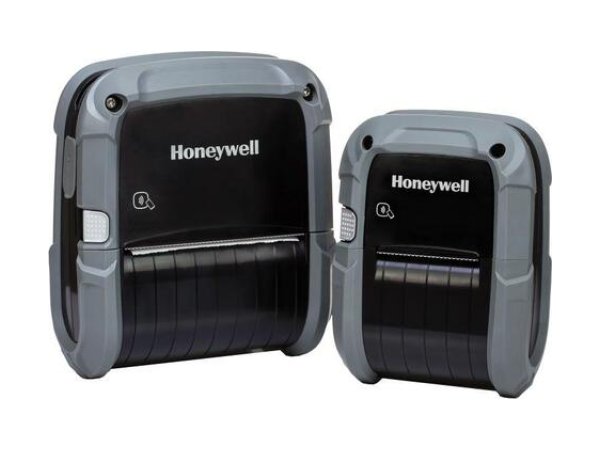
RP2 and RP4
- Media button flashing red
- 3 short beeps (battery)
- All lights red
Honeywell error messages: meaning and first action
The messages below appear on several Honeywell models. The detailed entry for each model gives the exact procedure.
| Message | Meaning | What to do first | Models |
|---|---|---|---|
Out of paper / Paper Out (1005), Out of Media (PM43) | The sensor no longer sees the media: roll not correctly fed, sensor out of position or dirty, printer not calibrated for these labels. | Reload the roll, reposition the sensor, then calibrate. | |
Out of transfer ribbon / Ribbon Out (1027) | Ribbon incorrectly loaded or not detected, printer not calibrated for this ribbon, or set to thermal transfer with labels that do not use a ribbon. | Reload the ribbon and calibrate, or switch to direct thermal mode. | |
Ribbon Installed (PD45S), Transfer ribbon is installed (1058) | A ribbon is loaded when the printer is set for direct thermal labels. | Remove the ribbon, or switch to thermal transfer if your labels require one. | |
Printhead Lifted, Head lifted / Printhead Up (1022) | Printhead or cover not fully latched, or open sensor dirty or faulty. | Open and close again until it clicks; if the message is still displayed, have the sensor checked. | |
Printhead too hot (1088) | Long print runs, high speed or darkness, hot or poorly ventilated room. | Let it cool down: printing resumes. If the message comes back, reduce the speed or move the printer. | |
Printhead Not DetectedFaulty Dot, Replace Printhead | Failed heating elements (vertical white lines) or thermistor fault. | Clean the printhead; if the fault persists, replace it. The thermistor is a job for a technician. | |
Next label not found (1031), LSS too high / too low (1007 / 1008), Testfeed not done (1606), TOF sensing error (MP Compact4) | The sensor cannot find the gap, notch or black mark between two labels: wrong detection mode, dirty or badly positioned sensor. | Choose the right detection mode, clean the sensor, run a calibration again. | |
Cutter error (1701 to 1704) | Blade jammed or label stuck in the cutter module. | Switch off and unplug, clear and clean the cutter without touching the blade. | |
IP link error, IP configuration error (PX6i) | Driver, port or network settings that do not match between the computer and the printer, faulty cable or wireless link. | Check the driver, the port, the cable and the network settings on both sides. | |
Battery light flashing red + 3 beeps | Battery discharged, worn or charged outside its temperature range. | Recharge within the specified range with an original charger; replace a battery reported as worn. |
Messages as worded in the Honeywell documentation. On the PF4i and PX6i, the numeric code corresponds to the Fingerprint language and the text message to the IPL language.
No message? The most common symptoms on Honeywell printers
These guides cover one symptom across all brands; the Honeywell models concerned are shown on each card.
-
Why is my label printer skipping labels or shifting the print?
In most cases, the printer is no longer calibrated for the media loaded: it no longer detects the gap, notch or black mark between two labels. Run a sensor calibration again after every label change, and check that the sensor is clean and correctly positioned.
Read the full guide -
Why does my printer say “paper out” when the labels are loaded?
The sensor cannot see the media: roll not correctly fed under the sensor, sensor out of position or dirty, or printer not calibrated. Reload the roll, reposition the sensor, then calibrate.
Read the full guide -
Why is my thermal printer printing faded labels or unreadable barcodes?
Dirty printhead or platen roller, darkness too low, insufficient printhead pressure or ribbon unsuited to the media. Clean the printhead first, then increase the darkness step by step; if nothing changes, the printhead may be worn.
Read the full guide -
Why are vertical white lines appearing on my labels?
White lines that stay in the same place on every label indicate dirty or failed heating elements. Clean the printhead: if the lines persist, it must be replaced.
Read the full guide -
Why is my printer printing blank labels?
The print mode does not match the media (direct thermal or thermal transfer), the ribbon is loaded with the ink side facing the wrong way, or the thermal roll is loaded the wrong way round. Check these three points before changing the darkness.
Read the full guide -
Why does my printer say “Ribbon Out” when the ribbon is loaded?
The ribbon is incorrectly loaded or not detected, the printer has not been calibrated for this ribbon, or it is set to thermal transfer when your labels do not use a ribbon. Reload the ribbon, calibrate, or switch to direct thermal.
Read the full guide -
Why is my printer ribbon wrinkling or breaking?
Ribbon incorrectly loaded or tensioned, darkness too high, printhead pressure too high or uneven, or ribbon too wide for the labels. Reload the ribbon, then set darkness and pressure to the minimum that gives a good print.
Read the full guide -
Why does my printer say “head open” when it is closed?
The printhead or cover is not fully latched, or the open sensor is dirty or faulty. Open it and close it again until it clicks; if the message is still displayed with the printhead closed, have the sensor checked by a technician.
Read the full guide -
Why does my label printer not respond when I send a print job?
The job does not reach the printer (driver, port, cable, network or Bluetooth pairing), or it arrives in a language the printer does not recognise. Check whether the data light reacts when you send the job: it is the first clue as to which side to investigate.
Read the full guide -
Why is my mobile printer battery not charging?
Battery discharged, worn or charged outside its temperature range. Recharge within the specified range with an original charger; a battery reported as worn must be replaced.
Read the full guide
Three checks before calling a technician
They resolve most of the messages documented on Honeywell printers.
- Are the media and ribbon loaded correctly?Roll fed under the sensor and against the guide, ribbon fitted the right way round (ink side facing the label) and taut. Most out-of-paper and out-of-ribbon messages come from this.
- Is the printer calibrated for this media?Recalibrate after any change of labels or ribbon, and as soon as the printer skips labels. Each model's own procedure is given in its guide.
- Is the printhead clean?Printhead cooled, cleaned with the product specified by the manufacturer, then the platen roller. A dirty printhead explains most faded print and white lines.
The most common faults on Honeywell printers
Breakdown of the 391 documented problems by category. Error messages (82) and connection problems (53) top the list.
Maintenance and repair of Honeywell printers
When a message persists after reloading, calibration and cleaning, or when Honeywell refers you to a technician, TIMCOD teams take over: phone support, repair, express exchange and preventive maintenance contracts.
Maintenance contract
Preventive maintenance (printer checks, minor fault fixes, detailed report) and corrective maintenance (phone support, repair, express exchange). Essentiel, Confort or Premium plans.
See the contractsRepair request
Honeywell printer out of order? Give the model and the problem in the repair request form (in French) and our team will get back to you.
Request a repairQuote or out-of-contract service
Printer bought elsewhere, a fleet to bring up to date or a contract to set up: describe what you need and our team will get back to you.
Contact us
Also at TIMCOD (in French)
Honeywell printers: frequently asked questions
What does error 1005 mean on a Honeywell printer?
On Honeywell printers that display numeric codes (PF4i, PX6i), 1005 means “Out of paper” (Paper Out in IPL): the printer no longer detects the media. Reload the roll, check the sensor position, then run a calibration. On more recent models, the same condition is shown as “Out of Media” or by the media icon in red. See the guide for your model.
Why does my Honeywell printer say “Printhead Lifted” when the printhead is closed?
The printhead, or the front arm on the PD45S, is not fully latched, or its closing is not detected. Open it again and close it until it latches; if the message persists with the printhead closed, have the printer checked. On the PX6i, the same condition has code 1022 (Head lifted).
Why does my Honeywell printer say “Ribbon Installed”?
A ribbon is fitted while the printer is set for direct thermal labels. Remove the ribbon, or switch to thermal transfer if your labels require one. On the PX6i, the corresponding code is 1058.
Does the same error number mean the same thing on Honeywell and Sato printers?
No. Error 1008 means “LSS too low” (label sensor) on Honeywell printers, but “out of paper” on Sato printers. Always note the full message and the brand before looking for a solution.
Is Honeywell's printer business now part of Brady?
The official product pages for Honeywell printers state that Honeywell Productivity Solutions and Services is now part of Brady Corporation. The troubleshooting procedures remain those of the Honeywell guides cited in each model guide.
How do I calibrate a Honeywell printer?
The procedure depends on the model: it is given in each model's troubleshooting guide. Recalibrate after any change of labels or ribbon, and as soon as the printer skips labels or reports out of media while the roll is loaded. See the guide for your model.
Sources consulted
The official Honeywell documents most cited in this brand's guides. Each model guide lists all its documents.
- User Guide: PX240S/PD45S Industrial Printer (PX240S-PD45S-EN-UG Rev B) – Honeywell PX240S/PD45S user guide (opens in a new window) official
- User Guide: PM45, PM45c, PM65 Series Industrial Printer Interface Boards And Accessories (PM45-PM65-ACC-EN-UG Rev C) – Honeywell PM45, PM45c and PM65 interface cards and accessories guide (opens in a new window) official
- Applicator Interface Board – Display Messages – PX45 and PX65 Accessory User Guide – Interface Boards and Accessories (PX45-65-ACC-EN-UG Rev B) (opens in a new window) official
- Quick Start Guide: PM45, PM45c, PM65 Industrial Printers (PM45-65-EN-QS-01 Rev A) – Honeywell PM45, PM45c and PM65 quick start guide (opens in a new window) official
- Honeywell PX940 Industrial Printer: 22 FAQs about Media, Ribbon Support and User Interface – Honeywell article of 15 July 2020 (opens in a new window) official
- RP2f/RP4f Mobile Printers Quick Start Guide – Honeywell RP2f/RP4f quick start guide (RP2f4f-EN-QS Rev C) (opens in a new window) official
- PM45/PM45c Industrial Printer Datasheet (Rev E, 09/24) – Honeywell PM45/PM45c data sheet (opens in a new window) official
- PX940 Series Industrial Printer Data Sheet – Honeywell PX940 data sheet (Rev D, 06/20) (opens in a new window) official
Need a more reliable Honeywell printer fleet?
A preventive maintenance visit checks, cleans and adjusts your printers, and spots worn printheads, platen rollers and sensors before they fail.
Explore maintenance contracts Request a quote