

 Zebra
Printer troubleshooting · Zebra
Zebra
Printer troubleshooting · Zebra
Zebra printer troubleshooting: error messages and fixes by model
Scheduled visits to check, clean and adjust your printers and spot worn parts before they fail.
In brief. TIMCOD technicians have documented 880 problems across 30 Zebra printers: industrial (ZT230, ZT410, ZT421, ZT420, ZT411, S4M, ZT231, ZT510, ZT610 and ZT620), desktop (GK420, ZD421, GX420, ZD410, ZD411, ZD420, ZD500R, ZD611, ZD620, ZD621), mobile (QLn420, ZQ630, ZQ511, ZQ610 Plus, ZQ510, ZQ310 Plus, ZQ320 Plus, ZQ620 Plus), wristband (ZD510-HC) and card (ZC100 and ZC300, ZXP Series 7). The most frequent messages, Media Out, Ribbon Out and Head Open, almost always come from incorrectly loaded media or ribbon, a sensor that needs recalibrating or a wrongly set print mode. Printhead faults (Head Element Out, Thermistor Fault) and a sensor that stays in error need a technician.
Examples:
Zebra troubleshooting guides by model
Each guide lists the model's messages and lights, then one entry per fault: cause, steps to follow, and when a technician is needed.
Zebra industrial printers 9 models
-
Industrial
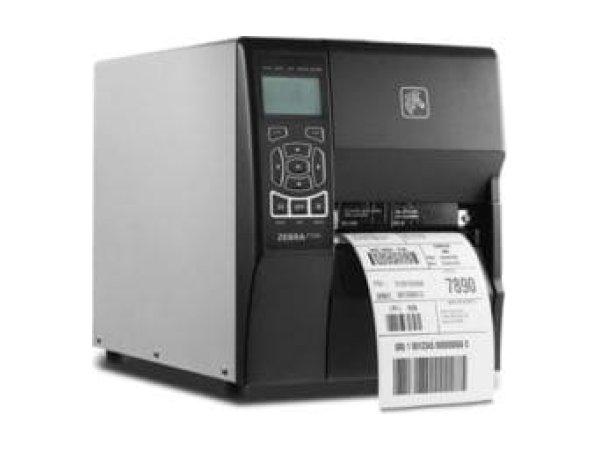
ZT230
- Head Open
- Media Out
- Ribbon Out
-
Industrial
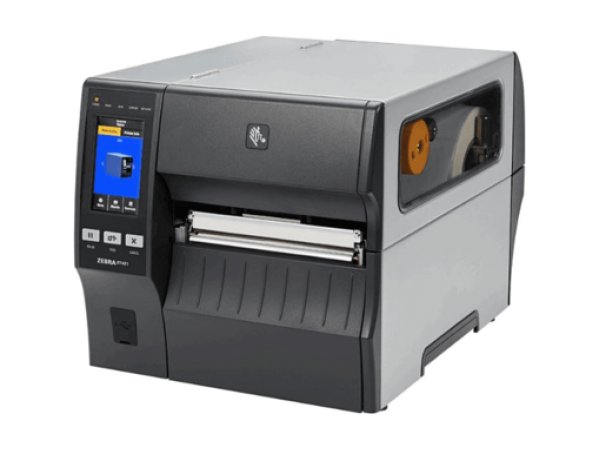
ZT410
- Media Out
- Ribbon Out
- Head Open
-
Industrial
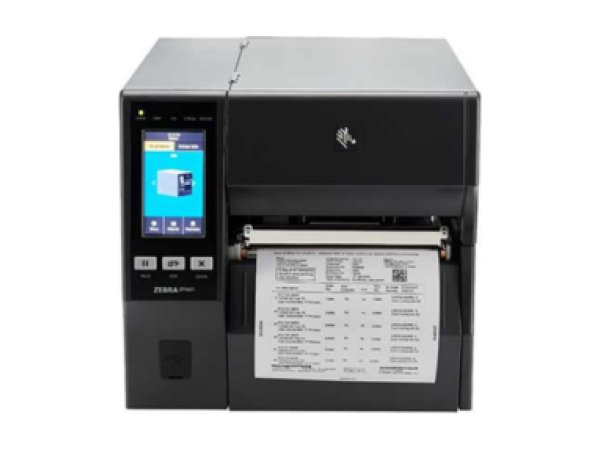
ZT421
- Media Out
- Ribbon Out
- Head Open
-
Industrial
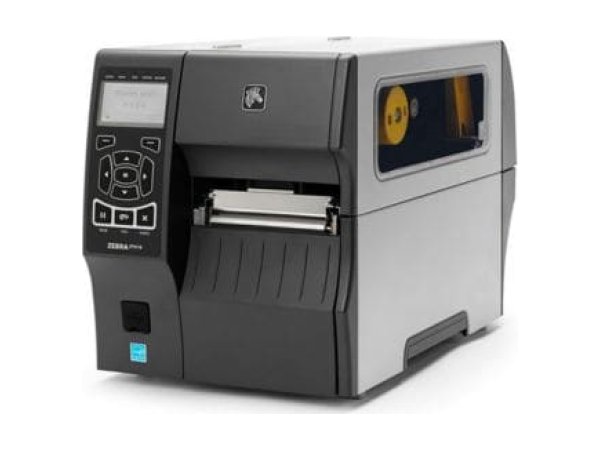
ZT420
- MEDIA OUT
- ALERT RIBBON OUT
- HEAD OPEN
-
Industrial
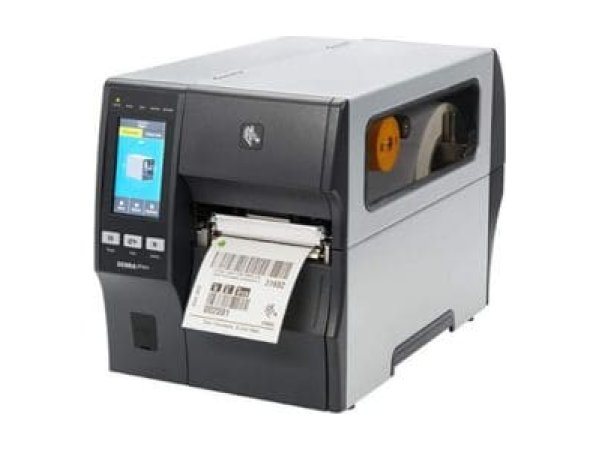
ZT411
- Media Out
- Ribbon Out
- Head Open
-
Industrial
S4M
- ALERT light flashing
- Skipped labels
- ADVANCED SETUP
-
Industrial
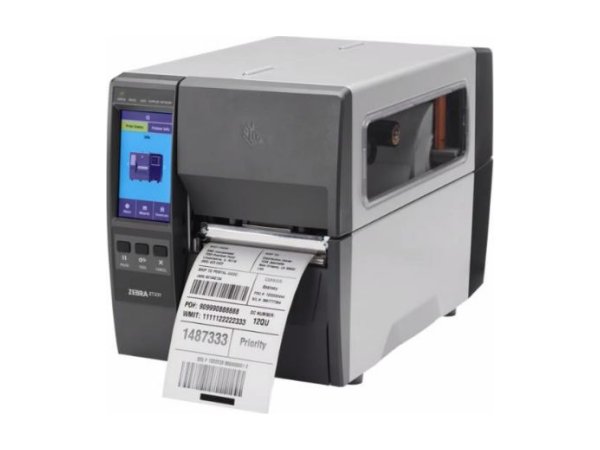
ZT231
- Media Out
- Ribbon Out
- Head Open
-
Industrial
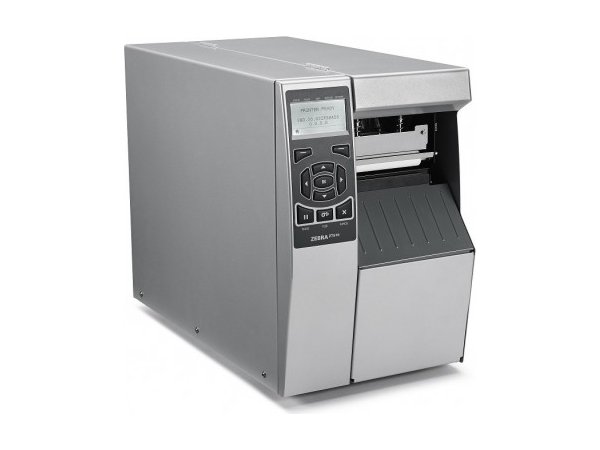
ZT510
- MEDIA OUT
- RIBBON OUT
- Head open
-
Industrial
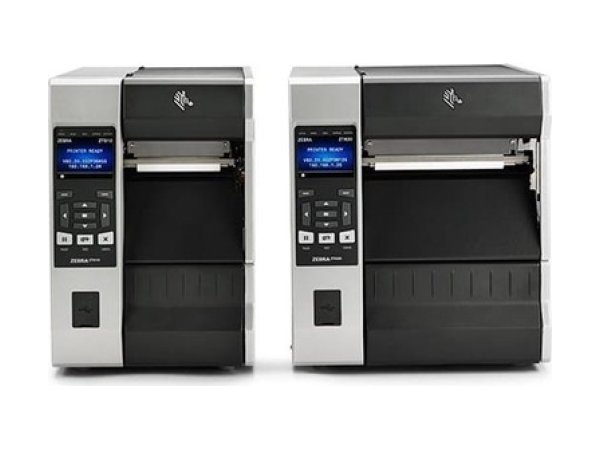
ZT610 and ZT620
- Media Out
- Ribbon Out
- Head Open
Zebra desktop printers 10 models
-
Desktop
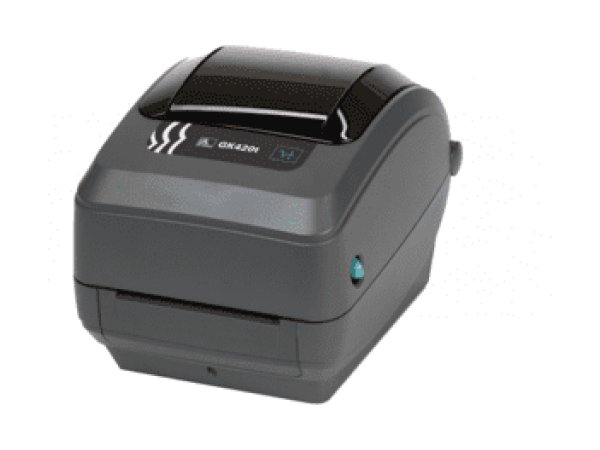
GK420
- Flashing red light
- Amber light
- Now in DUMP
-
Desktop
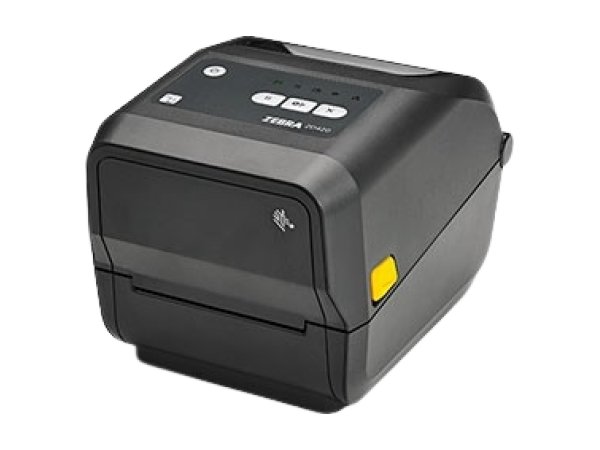
ZD421
- Media Out
- Printhead Open
- Ribbon Out
-
Desktop
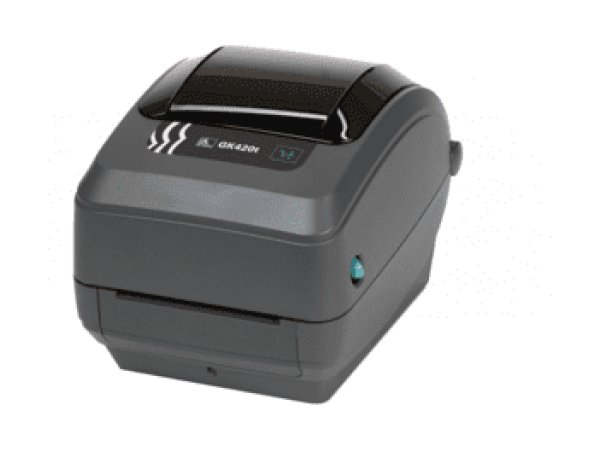
GX420
- Ribbon out (red light)
- Skips labels
- Blank labels
-
Desktop
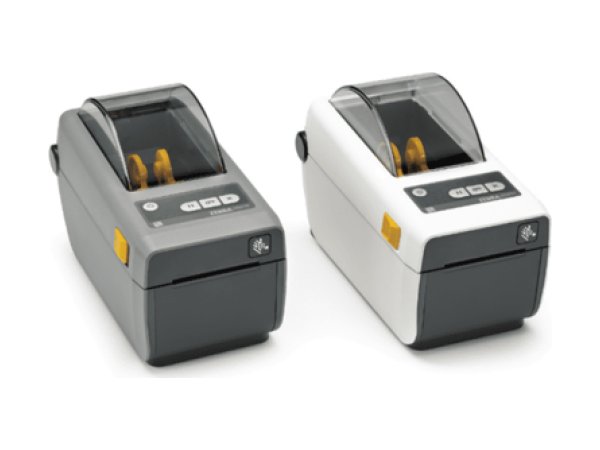
ZD410
- Media Out
- Printhead Open
- Cut Error
-
Desktop
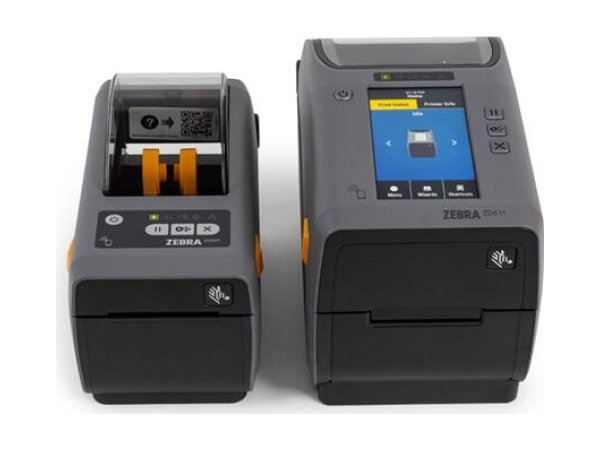
ZD411
- Media/Labels Out
- Printhead/Cover Open
- Printhead Over Temperature
-
Desktop
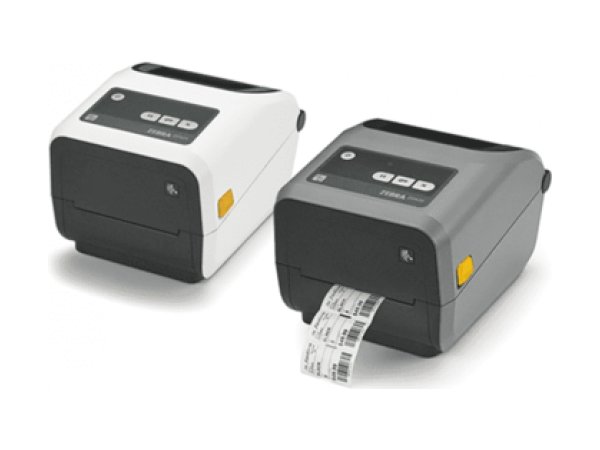
ZD420
- Media Out
- Ribbon Out
- Ribbon Low
-
Desktop
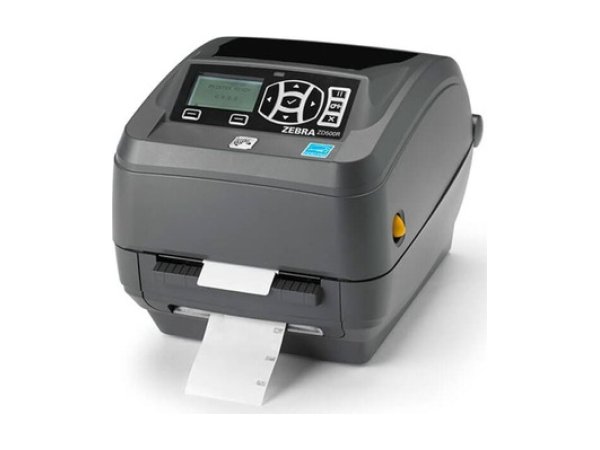
ZD500R
- VOID
- NO TAG FOUND
- Ribbon run out
-
Desktop
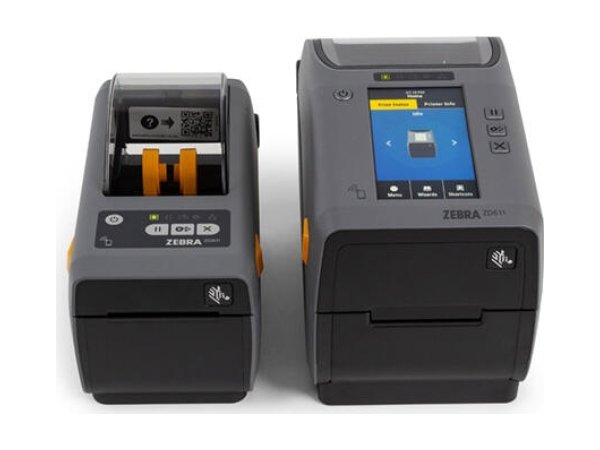
ZD611
- Media/Labels Out
- Printhead/Cover Open
- Cut Error
-
Desktop
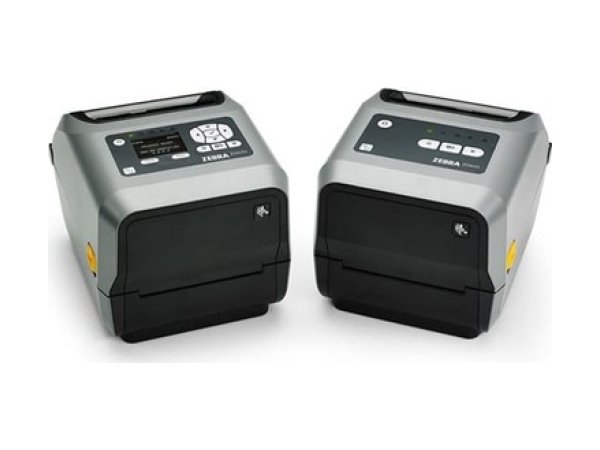
ZD620
- Media Out
- Ribbon Out
- Printhead Open
-
Desktop
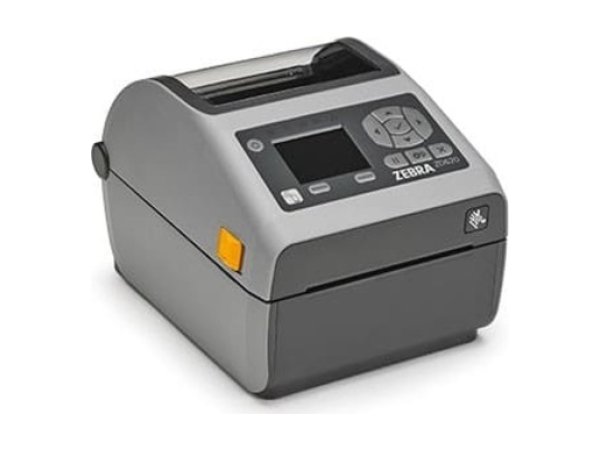
ZD621
- Media Out
- Ribbon Out
- Printhead Open
Zebra mobile printers 8 models
-
Mobile
QLn420
- Media Out
- Media Cover Open
- Battery Low
-
Mobile
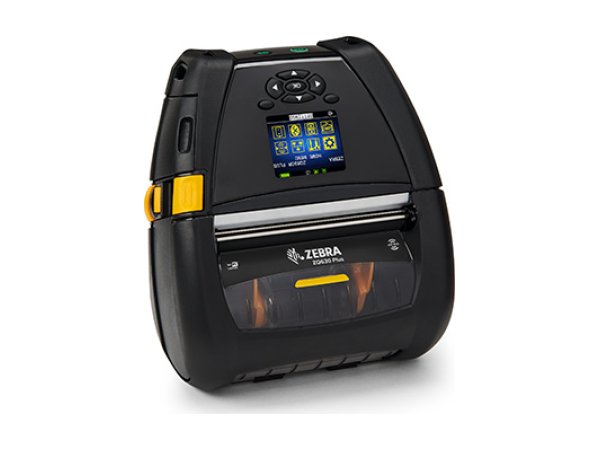
ZQ630
- Media Out
- Head Open
- Battery Low
-
Mobile
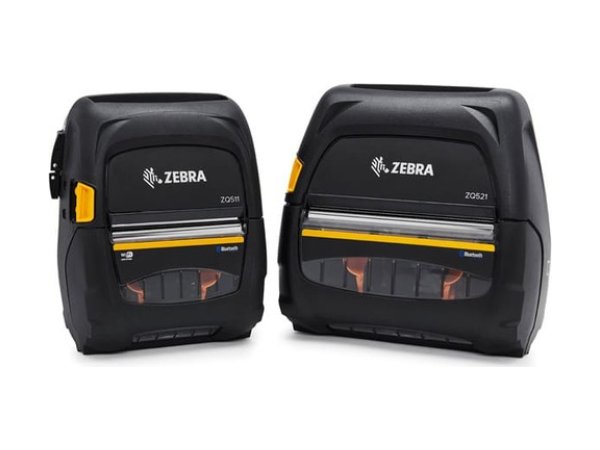
ZQ511
- Out of media
- Charging Temp Fault
- VOID
-
Mobile
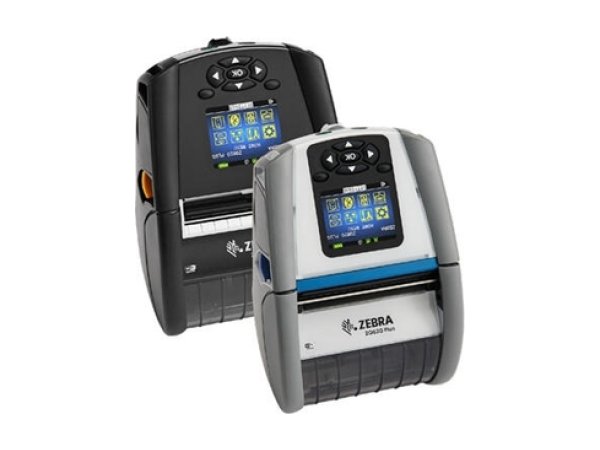
ZQ610 Plus
- Media Out
- Head Open
- Battery Low
-
Mobile
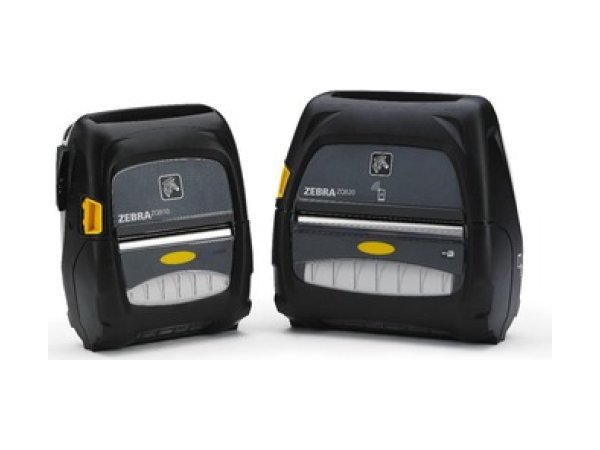
ZQ510
- Out of media
- Charging Temp Fault
- Out of Memory
-
Mobile
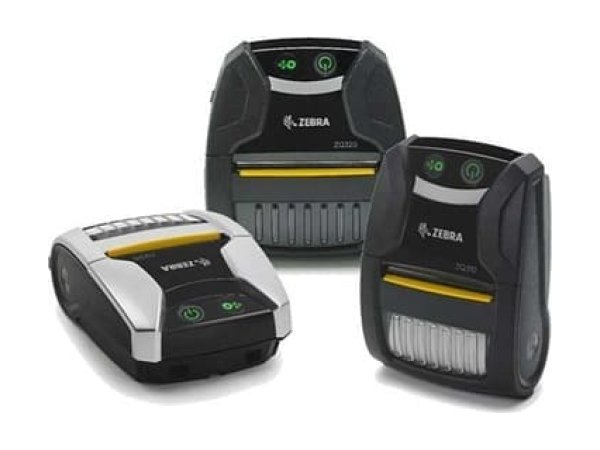
ZQ310 Plus
- Out of Media
- Media Cover Open
- Charge Fault
-
Mobile
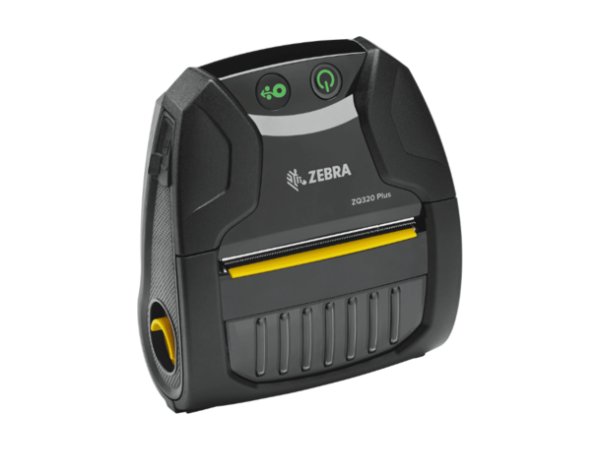
ZQ320 Plus
- Out of Media
- Media Cover Open
- Charge Fault
-
Mobile
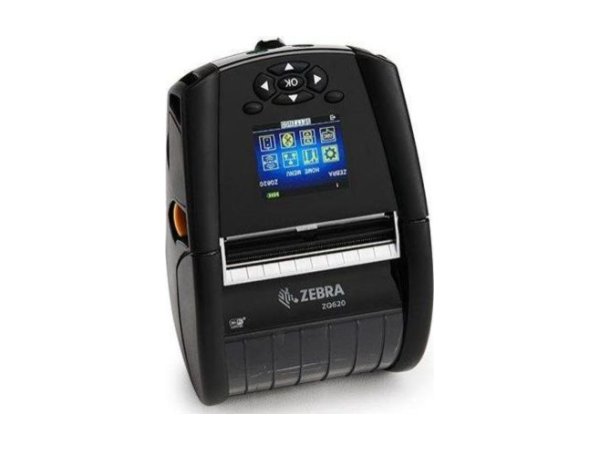
ZQ620 Plus
- Media Out
- Head Open
- Battery Low
Zebra wristband printers 1 model
-
Wristband
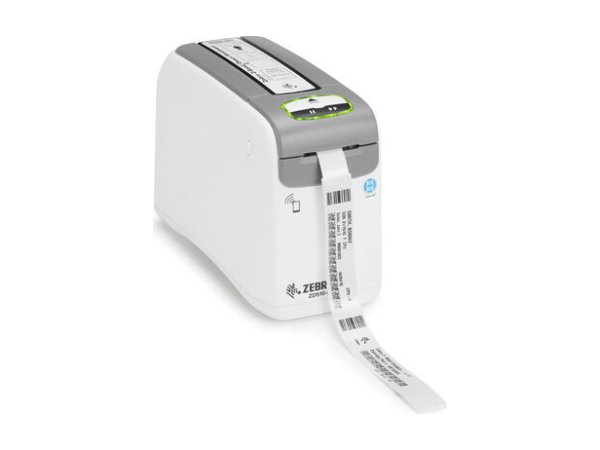
ZD510-HC
- Media Out
- Media Not Removed
- Upper Cover Open
Zebra card printers 2 models
-
Card printer
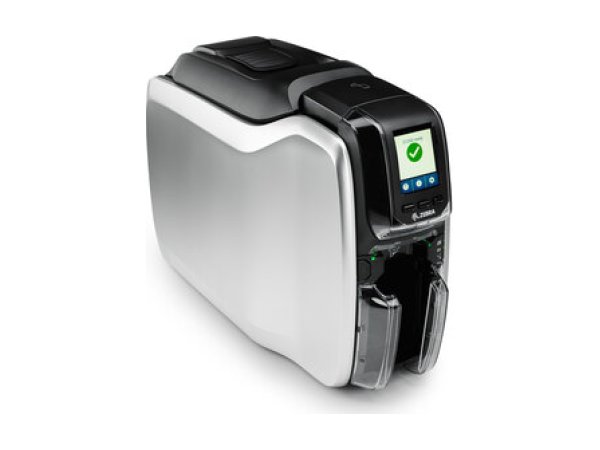
ZC100 and ZC300
- Card jam in printer (7036)
- Out of ribbon (5001)
- Out of cards (4001)
-
Card printer
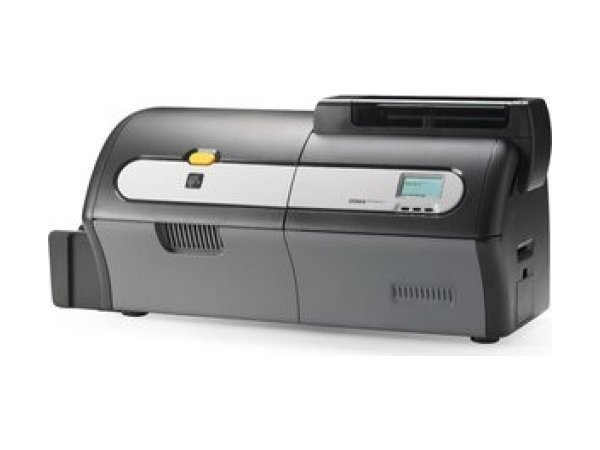
ZXP Series 7
- ALARM
- RIBBON LOW
- Ribbon Jam (5003)
Zebra error messages: meaning and first action
The messages below appear on several Zebra models. The detailed entry for each model gives the exact procedure.
| Message | Meaning | What to do first | Models |
|---|---|---|---|
Media OutOut of media (ZQ510, ZQ511), flashing red light (GK420) | The sensor no longer detects labels, even though the roll is often correctly in place: media not correctly fed, sensor out of position, printer not calibrated. | Reload the media, check the sensor position, calibrate. | |
Ribbon Outflashing red light (GK420t), red light (GX420t) | Ribbon not detected or used up, printer not calibrated for this ribbon, or thermal transfer mode with no ribbon. | Reload the ribbon and calibrate; with direct thermal labels, switch to Direct Thermal mode. | |
Ribbon InWarning: Ribbon In (ZT230), Ribbon Not Expected (ZT410, ZT420) | A ribbon is loaded when the printer is set to direct thermal. | Remove the ribbon, or set the printer to Thermal Transfer. | |
Head OpenPrinthead Open (ZD421), Media Cover Open (QLn420, ZQ511) | Printhead or cover not latched, or faulty head-open sensor. | Open and close again until it clicks. If the message persists with the printhead closed, Zebra requires a technician for the sensor. | |
Head Element OutReplace Printhead (ZT411, ZT421) | A heating element of the printhead has failed: unprinted streaks on the labels. | First rule out a wrinkled ribbon; if the failed element affects printing, replace the printhead. | |
Head Over Temp · Print Head Over TemperaturePrinthead Overtemp (ZT230), PRINT HEAD OVERTEMP (ZQ510, ZQ511), orange light (GK420) | The printhead is overheating. | Let it cool down: printing resumes. If the message comes back, reduce the speed or move the printer. | |
Head Under Temp · Thermistor FaultHead Cold (ZT230), Print Head Under Temperature (ZT410, ZT420), Printhead Under Temp (ZD421) | Printhead too cold, or faulty printhead cable and thermistor if the message persists. | Continue printing or move the printer to a warmer room; otherwise, call a technician. | |
Not Authenticated – Replace PrintheadUnauthorized Printhead Error (ZD421) | The installed printhead is not recognised as a genuine Zebra printhead. | Install a genuine Zebra printhead. | |
Out of MemoryOut of Memory Storing… (ZT411, ZT421, ZQ510, ZQ511) | Not enough memory to store the format, graphics or fonts. | Simplify the format (graphics, bitmap fonts), adjust the print width, delete unused formats. | |
Cut ErrorCutter Error (ZT411, ZT421, ZD421) | The cutter is jammed or its blade remains in the media path. | Switch off and unplug, inspect and clean the cutter module without touching the blade. | |
Battery Low · Battery DiminishedCharging Temp Fault – Must be 0-40°C | Battery discharged or worn, or charging outside the 0 to 40 °C range. | Recharge between 0 and 40 °C with an approved charger; replace a battery reported as worn. | |
Flashing red light | Out of labels or printhead open; on the t versions, end of ribbon. | Reload the roll or close the cover, then press FEED. | |
Now in DUMP | The printer is in communications diagnostics mode: it prints the data received in hexadecimal. | Switch off and on again, or press FEED until “Out of DUMP” is printed. | |
VOIDRfidError (ZQ630) | RFID label not encoded: the printer voids it. | Calibrate for the RFID media used and check that the tag type is supported. |
Messages as worded in the Zebra documentation. Depending on the firmware version, the same message may be displayed in capitals or in a short form (e.g. “PRINT HEAD OVERTEMP” on the ZQ510 and ZQ511).
No message? The most common symptoms on Zebra printers
These guides cover one symptom across all brands; the Zebra models concerned are shown on each card.
-
Why is my label printer skipping labels or shifting the print?
In most cases, the printer is no longer calibrated for the media loaded: it no longer detects the gap, notch or black mark between two labels. Run a sensor calibration again after every label change, and check that the sensor is clean and correctly positioned.
- ZT230
- ZT410
- ZT421
- ZT420
- ZT411
- S4M
- GK420
- ZD421
- GX420
- QLn420
- ZQ630
- ZQ511
- ZQ610 Plus
- ZQ510
- ZD410
- ZD411
- ZD420
- ZD500R
- ZD510-HC
- ZD611
- ZD620
- ZD621
- ZQ310 Plus
- ZQ320 Plus
- ZQ620 Plus
- ZT231
- ZT510
- ZT610 and ZT620
-
Why does my printer say “paper out” when the labels are loaded?
The sensor cannot see the media: roll not correctly fed under the sensor, sensor out of position or dirty, or printer not calibrated. Reload the roll, reposition the sensor, then calibrate.
- ZT230
- ZT410
- ZT421
- ZT420
- ZT411
- GK420
- ZD421
- GX420
- QLn420
- ZQ630
- ZQ511
- ZQ610 Plus
- ZQ510
- ZD410
- ZD411
- ZD420
- ZD500R
- ZD510-HC
- ZD611
- ZD620
- ZD621
- ZQ310 Plus
- ZQ320 Plus
- ZQ620 Plus
- ZT231
- ZT510
- ZT610 and ZT620
-
Why is my thermal printer printing faded labels or unreadable barcodes?
Dirty printhead or platen roller, darkness too low, insufficient printhead pressure or ribbon unsuited to the media. Clean the printhead first, then increase the darkness step by step; if nothing changes, the printhead may be worn.
- ZT230
- ZT410
- ZT421
- ZT420
- ZT411
- S4M
- GK420
- ZD421
- GX420
- QLn420
- ZQ630
- ZQ511
- ZQ610 Plus
- ZQ510
- ZD410
- ZD411
- ZD420
- ZD500R
- ZD510-HC
- ZD611
- ZD620
- ZD621
- ZQ310 Plus
- ZQ320 Plus
- ZQ620 Plus
- ZT231
- ZT510
- ZT610 and ZT620
-
Why are vertical white lines appearing on my labels?
White lines that stay in the same place on every label indicate dirty or failed heating elements. Clean the printhead: if the lines persist, it must be replaced.
- ZT410
- ZT421
- ZT420
- ZT411
- GK420
- GX420
- ZQ630
- ZQ610 Plus
- ZD411
- ZD510-HC
- ZQ310 Plus
- ZQ320 Plus
- ZT231
- ZT510
- ZT610 and ZT620
-
Why is my printer printing blank labels?
The print mode does not match the media (direct thermal or thermal transfer), the ribbon is loaded with the ink side facing the wrong way, or the thermal roll is loaded the wrong way round. Check these three points before changing the darkness.
Read the full guide -
Why does my printer say “Ribbon Out” when the ribbon is loaded?
The ribbon is incorrectly loaded or not detected, the printer has not been calibrated for this ribbon, or it is set to thermal transfer when your labels do not use a ribbon. Reload the ribbon, calibrate, or switch to direct thermal.
Read the full guide -
Why is my printer ribbon wrinkling or breaking?
Ribbon incorrectly loaded or tensioned, darkness too high, printhead pressure too high or uneven, or ribbon too wide for the labels. Reload the ribbon, then set darkness and pressure to the minimum that gives a good print.
Read the full guide -
Why does my printer say “head open” when it is closed?
The printhead or cover is not fully latched, or the open sensor is dirty or faulty. Open it and close it again until it clicks; if the message is still displayed with the printhead closed, have the sensor checked by a technician.
- ZT230
- ZT410
- ZT421
- ZT420
- ZT411
- GK420
- ZD421
- QLn420
- ZQ630
- ZQ610 Plus
- ZD410
- ZD411
- ZD420
- ZD500R
- ZD510-HC
- ZD611
- ZD620
- ZD621
- ZQ310 Plus
- ZQ320 Plus
- ZQ620 Plus
- ZT231
- ZT510
- ZT610 and ZT620
-
Why does my label printer not respond when I send a print job?
The job does not reach the printer (driver, port, cable, network or Bluetooth pairing), or it arrives in a language the printer does not recognise. Check whether the data light reacts when you send the job: it is the first clue as to which side to investigate.
- ZT230
- ZT410
- ZT421
- ZT420
- ZT411
- S4M
- GK420
- ZD421
- GX420
- QLn420
- ZQ630
- ZQ511
- ZQ610 Plus
- ZQ510
- ZD410
- ZD411
- ZD420
- ZD500R
- ZD510-HC
- ZD611
- ZD620
- ZD621
- ZQ310 Plus
- ZQ320 Plus
- ZQ620 Plus
- ZT231
- ZT510
- ZT610 and ZT620
-
Why is my mobile printer battery not charging?
Battery discharged, worn or charged outside its temperature range (0 to 40 °C for Zebra mobile printers). Recharge within the specified range with an original charger; a battery reported as worn must be replaced.
Read the full guide
Three checks before calling a technician
They resolve most of the messages documented on Zebra printers.
- Does the print mode match the labels?Direct Thermal for heat-sensitive labels without ribbon, Thermal Transfer with ribbon. A wrong setting causes Ribbon Out, Ribbon In or blank labels.
- Is the printer calibrated for this media?Recalibrate after any change of labels or ribbon. The procedure depends on the range: it is given in the guide for each model.
- Are the printhead and the platen roller clean?Printhead cooled down, swab from the Zebra maintenance kit or 99.7% isopropyl alcohol, from one end of the printhead to the other, then the platen roller.
The most common faults on Zebra printers
Breakdown of the 880 documented problems by category. Error messages (179) and connection problems (132) top the list.
Maintenance and repair of Zebra printers
When a message persists after reloading, calibration and cleaning, or when Zebra refers you to a technician, TIMCOD teams take over: phone support, repair, express exchange and preventive maintenance contracts.
Maintenance contract
Preventive maintenance (printer checks, minor fault fixes, detailed report) and corrective maintenance (phone support, repair, express exchange). Essentiel, Confort or Premium plans.
See the contractsRepair request
Zebra printer out of order? Give the model and the problem in the repair request form (in French) and our team will get back to you.
Request a repairQuote or out-of-contract service
Printer bought elsewhere, a fleet to bring up to date or a contract to set up: describe what you need and our team will get back to you.
Contact us
Also at TIMCOD (in French)
Zebra printers: frequently asked questions
How do I calibrate a Zebra printer?
The procedure depends on the range. On a ZT230 (ZT200 Series), hold PAUSE + CANCEL for 2 seconds or go through the TOOLS > SENSORS > START menu, with only the liner between the sensors. For other models, the procedure is given in their troubleshooting guide. Recalibrate after any change of labels or ribbon and as soon as the printer skips labels. See the guide for your model.
What does the flashing red light mean on a Zebra GK420?
According to Zebra, flashing red indicates that the media has run out or that the printhead is open. On the thermal transfer version (GK420t), it also indicates the end of the ribbon. Reload the roll or close the cover, then press FEED.
Why does my Zebra say “Ribbon Out” when the ribbon is installed?
The ribbon is incorrectly loaded or not detected, or the printer has not been calibrated for this ribbon. Reload it and calibrate. If your labels are direct thermal (no ribbon), set the printer to Direct Thermal mode: in Thermal Transfer mode, it expects a ribbon.
What does “Head Element Out” mean on a Zebra printer?
On the ZT411 and ZT421, Zebra states that a heating element of the printhead no longer works, which can leave unprinted streaks on the labels. First check that the streaks are not caused by a wrinkled ribbon; if the failed element affects printing, the printhead must be replaced.
Why is my Zebra mobile printer battery not charging?
“Charging Temp Fault – Must be 0-40°C” means that the battery is outside its charging temperature range: recharge it between 0 and 40 °C. “Charging Fault” or “Battery Failed – Replace Battery” indicates a faulty battery that must be replaced. Use a Zebra-approved charger.
Why does my Zebra reject the printhead after a replacement?
The message “Not Authenticated – Replace Printhead” (or “Unauthorized Printhead Error” on the ZD421) means that the installed printhead is not recognised as a genuine Zebra printhead. Zebra says to install a genuine Zebra printhead.
How do I clean the printhead of a Zebra printer?
Let the printhead cool down and remove jewellery and metal objects. Wipe the brown strip of the printhead from one end to the other with a swab from the Zebra maintenance kit or a cotton swab moistened with 99.7% isopropyl alcohol, then clean the platen roller while rotating it.
Sources consulted
The official Zebra documents most cited in this brand's guides. Each model guide lists all its documents.
- Alerts and Error Messages – ZT411/ZT421 Industrial Printer User Guide (opens in a new window) official
- Troubleshooting Issues – ZQ610 Plus/ZQ620 Plus/ZQ630 Plus User Guide (opens in a new window) official
- Error Messages – ZQ610 Plus/ZQ620 Plus/ZQ630 Plus User Guide (opens in a new window) official
- Error Message Lookup – ZT400 Series Industrial Printer User Guide (opens in a new window) official
- Standard Interface Controls – ZD421 and ZD621 Desktop Printer User Guide (opens in a new window) official
- Miscellaneous Issues – ZT400 Series Industrial Printer User Guide (opens in a new window) official
- Printing Issues – ZT400 Series Industrial Printer User Guide (opens in a new window) official
- GK420d Desktop Printer User Guide P1129574-01EN Rev A (Zebra PDF) (opens in a new window) official
- Operator Controls – ZQ310 Plus and ZQ320 Plus User Guide (P1131153-01EN) (opens in a new window) official
- ZQ610 Plus/ZQ620 Plus/ZQ630 Plus User Guide (PDF) › Status Icons – Zebra ZQ610 Plus/ZQ620 Plus/ZQ630 Plus user guide (opens in a new window) official
- Meaning of the Indicator Light Patterns – Zebra ZD510 Wristband Printer User Guide (P1099655-03EN) (opens in a new window) official
- ZT510 Industrial Printer User Guide (PDF) › Alerts and Error Messages – Zebra ZT510 user guide (opens in a new window) official
Need a more reliable Zebra printer fleet?
A preventive maintenance visit checks, cleans and adjusts your printers, and spots worn printheads, platen rollers and sensors before they fail.
Explore maintenance contracts Request a quote