

 CipherLab
Scanners and mobile computers · CipherLab
CipherLab
Scanners and mobile computers · CipherLab
CipherLab mobile computer troubleshooting: beeps, errors and fixes by model
Preventive battery replacement, Wi-Fi coverage audit and a general check of your scanners and mobile computers.
In brief. TIMCOD technicians have documented 77 problems across 3 CipherLab mobile computers: mobile computers (RK25, RK26, RK95). Scanning is configured in the ReaderConfig application; a factory reset requires a CipherLab verification code on the RK25. Each guide links the model's beeps, lights and messages to their cause, then gives the manufacturer's procedure.
Examples:
CipherLab troubleshooting guides by model
Each guide lists the model's beeps, lights and messages, then one entry per fault: cause, steps to follow, and when a technician is needed.
CipherLab mobile computers 3 models
-
Mobile computer
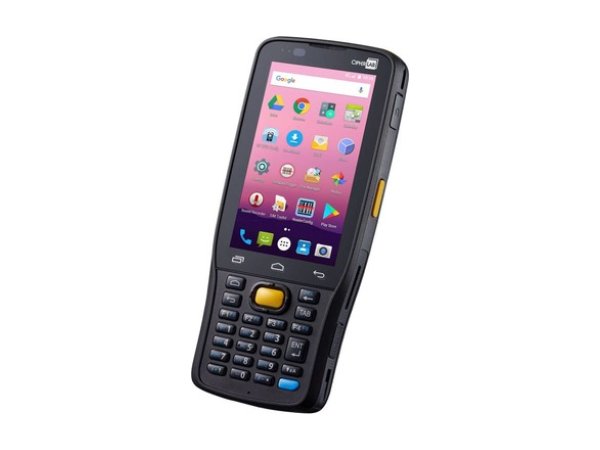
RK25
- Flashing red light
- Low Sub Battery
- Over Battery Temperature
-
Mobile computer
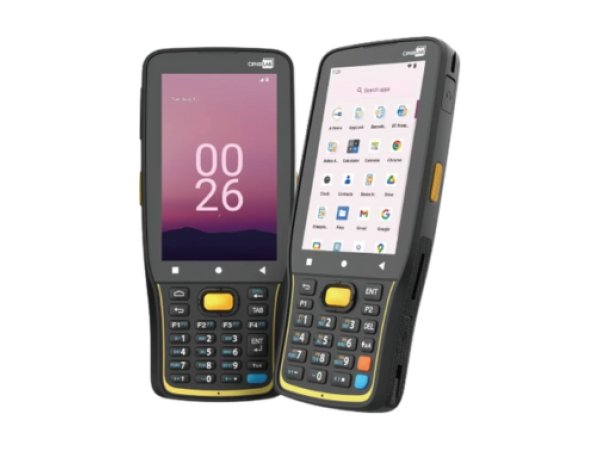
RK26
- LED 1 flashing red
- Low Sub Battery
- Try Again
-
Mobile computer
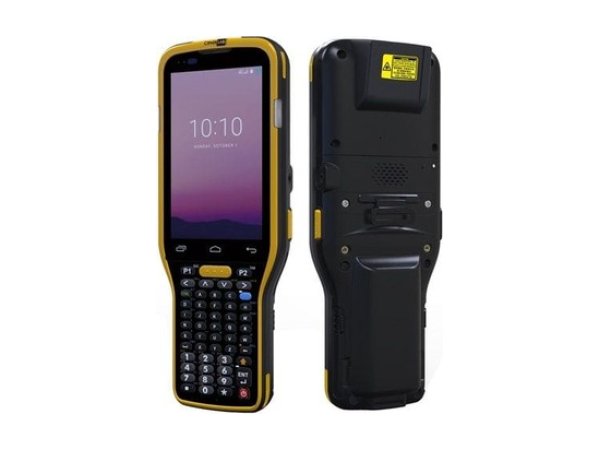
RK95
- LED 1 flashing red
- Recovery mode
- Standard Battery
CipherLab beeps, lights and messages: meaning and first action
The signals below are described in the documentation for several CipherLab models. The detailed entry for each model gives the exact procedure.
| Signal | Meaning | What to do first | Models |
|---|---|---|---|
| LED 1 flashing red | Charging temperature error: battery below 0 °C or above 45 °C. | Unplug, let the mobile computer return to room temperature, then restart charging. | |
| Charging light off | Charging cable not properly connected. | Reconnect the cable and check the mains adapter. | |
| Cradle light: one red flash | No spare battery detected: this light only concerns the spare battery. | Install the spare battery in its slot. | |
| No Internet on-screen message | The mobile computer is connected to the access point, but the access point has no Internet access, or captive portal detection is at fault. | Test another network, then adjust captive portal detection. | |
| No green LED when scanning | LED notification disabled by default in ReaderConfig. | Enable “Enable LED when good read” and give it a duration. |
Signals found in the CipherLab documentation. The entry for each model gives the full procedure and its sources.
No signal? The most common symptoms on CipherLab mobile computers
These guides cover one symptom across all brands; the CipherLab models concerned are shown on each card.
-
Why has my barcode scanner stopped reading barcodes?
In the manufacturers' documentation, three causes keep coming up: the barcode type (symbology) is not enabled, the reading distance or angle is not right, or the scan window is dirty. Test first with a barcode of the same type in good condition.
Read the full guide -
Why is my barcode scanner sending the wrong characters?
In keyboard emulation, many scanners leave the factory set to the American (US) keyboard. On an AZERTY host computer, digits turn into accented letters or symbols: program the keyboard country “France” on the scanner.
Read the full guide -
Why does my scanner beep but nothing appears?
The barcode is read, but the data does not reach the application: interface programmed incorrectly (USB keyboard or virtual serial port), link with the base broken, or, on a mobile computer, keyboard input (wedge) disabled.
Read the full guide -
Why is the battery in my scanner or mobile computer not charging?
Manufacturers first cite a temperature outside the charging range (most often 0 to 40 °C or 0 to 45 °C, but 0 to 35 °C or 5 to 35 °C on some models), then a battery at the end of its life or not approved, or a faulty cradle or power supply. The charging light often shows which case applies.
Read the full guide -
How do I reset a barcode scanner or mobile computer?
A handheld scanner returns to its factory settings when you scan the reset barcode in its guide; a mobile computer is reset from its settings or its recovery menu. A factory reset of a mobile computer erases its data.
Read the full guide -
Why has the scanner on my mobile computer stopped reading?
On a mobile computer, scanning goes through a manufacturer application (DataWedge on Zebra, ReaderConfig on CipherLab, Datalogic Settings…): a disabled scanner or a symbology that is not enabled explains many cases. Test in the manufacturer's test application.
Read the full guide -
Why is my mobile computer losing Wi-Fi?
The guides cite bands or security that the mobile computer does not support, unsuitable roaming settings, Wi-Fi power saving mode and captive portal detection. First compare your access points with the mobile computer's data sheet.
Read the full guide -
Why won't my mobile computer turn on?
The most documented case is a battery that is too deeply discharged: several mobile computers refuse to start until it has recharged enough. Leave the mobile computer on its cradle for several hours; if it stays frozen, a forced restart specific to the model brings it back.
Read the full guide
Three checks before calling a technician
They cover the checks most often cited in the documentation for CipherLab models.
- Is the barcode type enabled?Not all symbologies are enabled at the factory: check the one for your barcode in the settings of the scanner or of the scanning application.
- Do the interface and keyboard country match the host computer?Keyboard emulation or virtual serial port, country “France” for an AZERTY host computer: the two settings to check first when the data arrives incorrectly.
- Are the link and the battery in good order?Scanner paired with its base, base powered, battery charged within the temperature range given in the guide.
The most common faults on CipherLab mobile computers
Breakdown of the 77 documented problems by category. Battery and charging (14) and configuration and reset (13) come first.
Maintenance and repair of CipherLab mobile computers
When a problem persists after an adjustment, a recharge or a reset, or when CipherLab refers you to support, TIMCOD teams take over: hotline, repair, express exchange and preventive maintenance contracts.
Maintenance contract
Preventive maintenance (battery replacement, Wi-Fi audit, device checks, detailed report) and corrective maintenance (phone support, repair, express exchange). Essentiel, Confort or Premium plans.
See the contractsRepair request
CipherLab mobile computer out of order? Give the model and the problem in the repair request form (in French) and our team will get back to you.
Request a repairQuote or out-of-contract service
Device bought elsewhere, a fleet to bring up to date or a contract to set up: describe what you need and our team will get back to you.
Contact us
Also at TIMCOD (in French)
CipherLab mobile computers: frequently asked questions
How do I enable a symbology on a CipherLab mobile computer?
Open ReaderConfig, check that “Enable Reader” is ticked and enable the barcode type in the profile, then do a test with “Scan Test”. See the guide for your model.
How do I remove the line break after each barcode on a CipherLab?
By default, ReaderConfig adds a carriage return after each barcode. In “Auto Enter”, choose “Disable” to remove it, or change “Auto Enter Character” to send a tab, for example.
What should I do if a CipherLab mobile computer will not turn on after a complete discharge?
CipherLab recommends a “hibernation reset”: remove the battery, hold the power button for about one minute, put the battery back and charge for about ten minutes. Turn the mobile computer on as soon as it shows 5 to 10% charge.
At what temperature should I charge a CipherLab RK25 or RK26?
Between 0 °C and 45 °C: outside this range, the light flashes red and charging stops. Let the mobile computer return to room temperature, then restart charging.
Sources consulted
The official CipherLab documents most cited in this brand's guides. Each model guide lists all its documents.
- 3.8 Enterprise Settings – RK26 Mobile Computer Reference Manual v1.03 (opens in a new window) official
- 1.1.4 Homescreen Selection – RK25 Mobile Computer Reference Manual v1.14 (Android 7.0 Nougat) (opens in a new window) official
- 2.3.4 Touch Mode – RK95 Mobile Computer Reference Manual V1.06 (Android 9 Pie) (opens in a new window) official
- 2.3 Data Output – ReaderConfig User Guide for Android v1.03 (opens in a new window) official
- [Android] What to do if my CipherLab Android devices asks Google account password after factory reset? – CipherLab Technical FAQ (support knowledge base) (opens in a new window) official
- Wi-Fi 6 Rugged Mobile Computer, RK26 Series - CipherLab Co., Ltd. – CipherLab product page (opens in a new window) official
- RK95 Industrial Handheld Terminal/ Industrial Mobile Computer – CipherLab product page (opens in a new window) official
- Mobile Computers - CipherLab Co., Ltd. – CipherLab website, Support and Services, Device Cleaning & Disinfecting (opens in a new window) official
Need a more reliable fleet of CipherLab mobile computers?
During a preventive visit, your scanners and mobile computers are checked and cleaned one by one, minor faults are fixed and you receive a report; removable batteries are replaced every 18 to 24 months.
Explore maintenance contracts Request a quote