

 Zebra
Scanners and mobile computers · Zebra
Zebra
Scanners and mobile computers · Zebra
Zebra scanner and mobile computer troubleshooting: beeps, errors and fixes by model
Preventive battery replacement, Wi-Fi coverage audit and a general check of your scanners and mobile computers.
In brief. TIMCOD technicians have documented 365 problems across 16 Zebra scanners and mobile computers: handheld scanners (DS3600), fixed-mount scanners (FS10, FS20, FS40 / FS70) and mobile computers (MC3200, MC3300, MC3300ax, MC3300x, MC3400, MC9190-G, MC9200, MC9300, MC9400, TC22R, TC8000, TC8300). Zebra mobile computers control scanning with the DataWedge application; FS fixed-mount scanners are configured with Zebra Aurora Focus. Each guide links the model's beeps, lights and messages to their cause, then gives the manufacturer's procedure.
Examples:
Zebra troubleshooting guides by model
Each guide lists the model's beeps, lights and messages, then one entry per fault: cause, steps to follow, and when a technician is needed.
Zebra handheld scanners 1 model
-
Handheld scanner
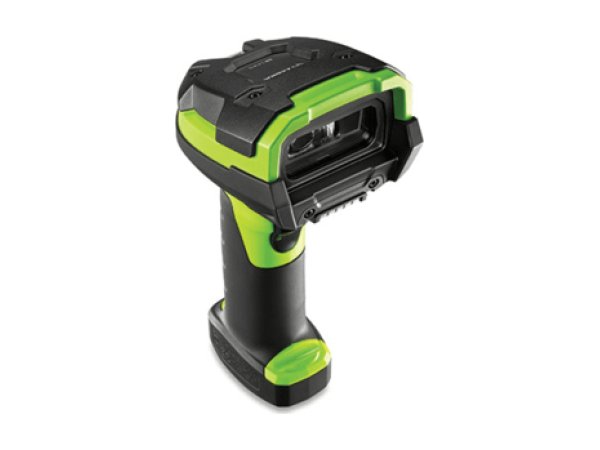
DS3600
- 4 long low beeps
- Low/high beeps
- Scanner not paired with the cradle
Zebra fixed-mount scanners 3 models
-
Fixed-mount scanner
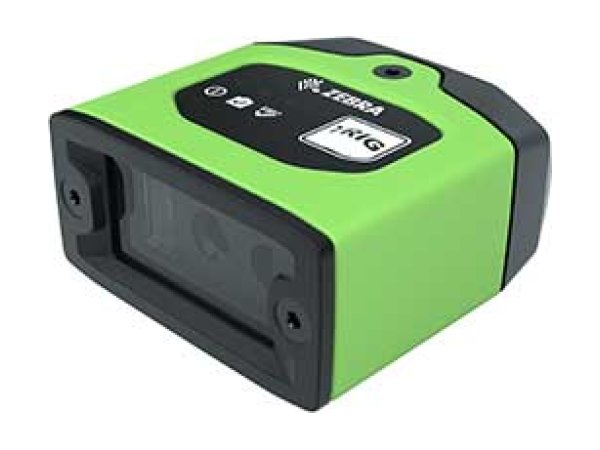
FS10
- 2 low tones (job error)
- Red Power light
- Missing from Aurora Focus
-
Fixed-mount scanner
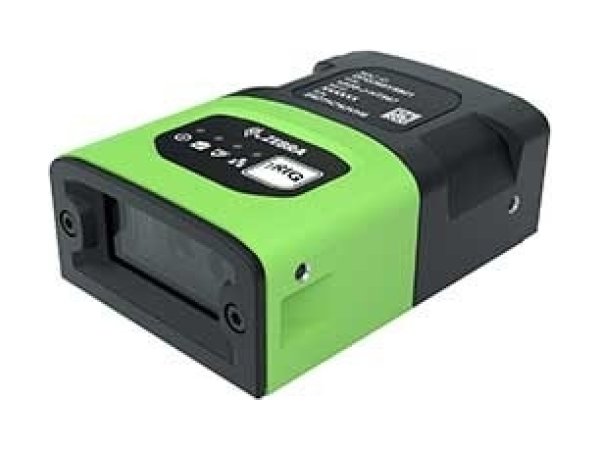
FS20
- Power light flashing green (limited PoE)
- 2 low tones (job error)
- Not found in Aurora Focus
-
Fixed-mount scanner
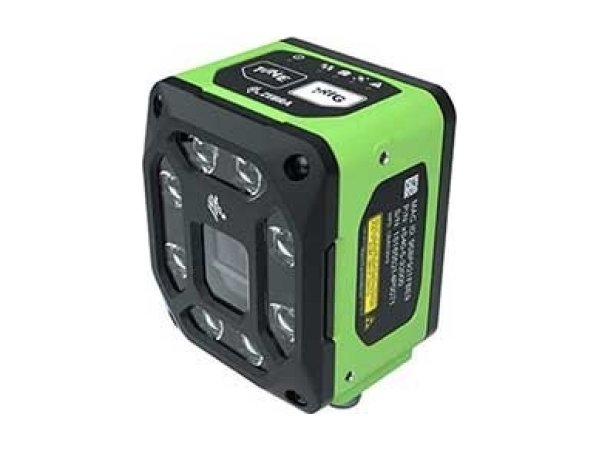
FS40 / FS70
- 360° ring red (read failure)
- 2 low tones, red Warning light
- Power light amber (limited power)
Zebra mobile computers 12 models
-
Mobile computer
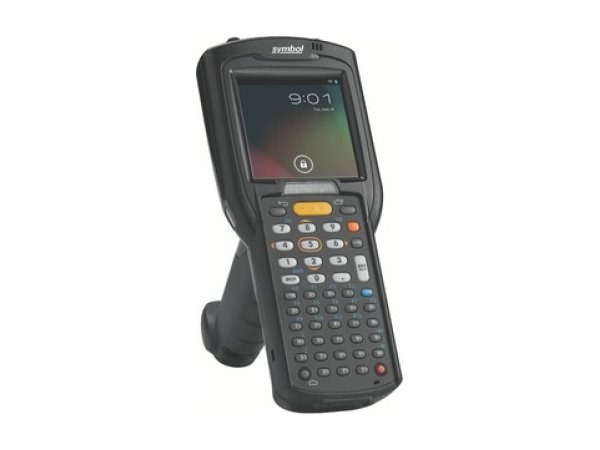
MC3200
- Orange light flashing rapidly
- Scanner not reading
- Windows CE cold boot
-
Mobile computer
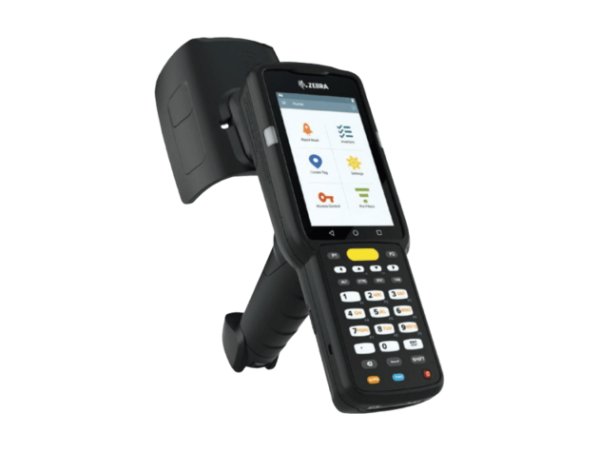
MC3300
- Orange flashing slowly
- Red light
- Does not read QR codes
-
Mobile computer
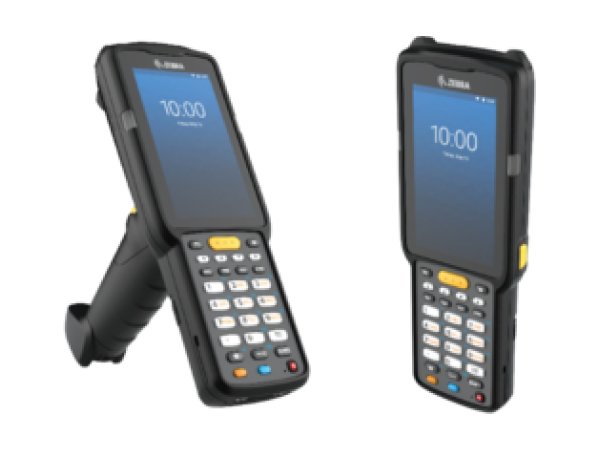
MC3300ax
- Flashing red light
- Battery notification
- BLE beacon
-
Mobile computer
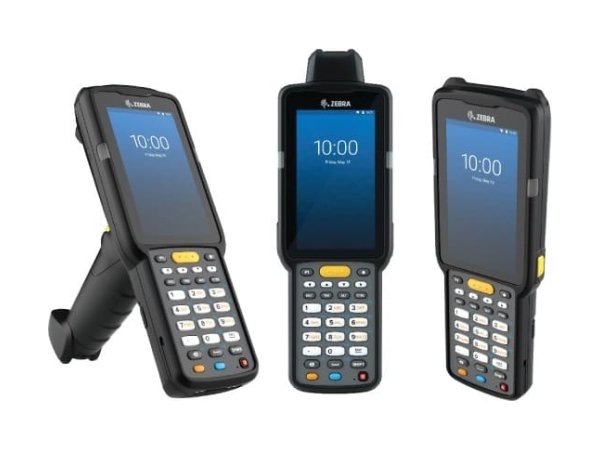
MC3300x
- Flashing red light
- Incorrect battery message
- No longer reads barcodes
-
Mobile computer
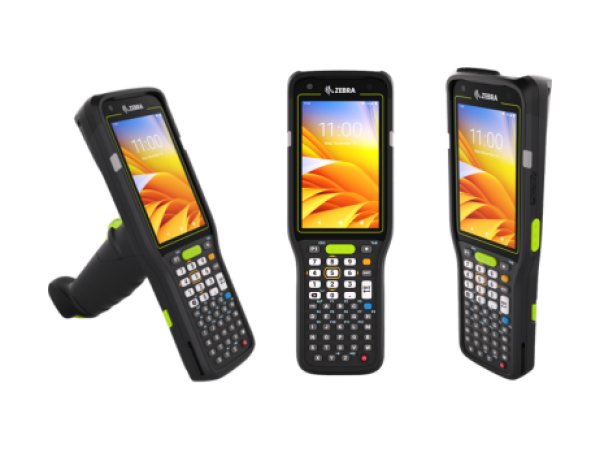
MC3400
- Flashing red light
- Scanner not reading
- Battery no longer charging
-
Mobile computer
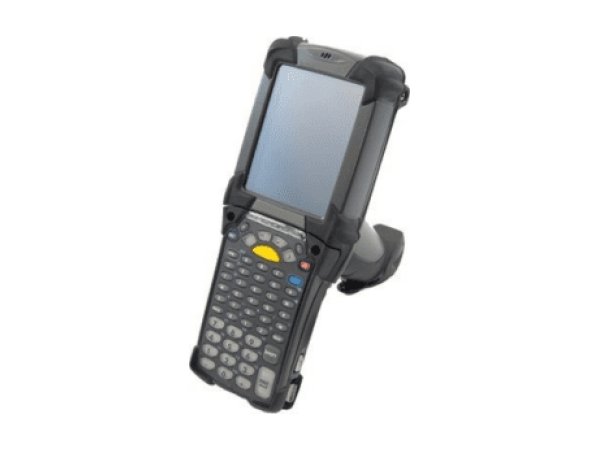
MC9190-G
- Amber flashing fast
- Wi-Fi off at start-up (Windows CE 6.0)
- Cold boot
-
Mobile computer
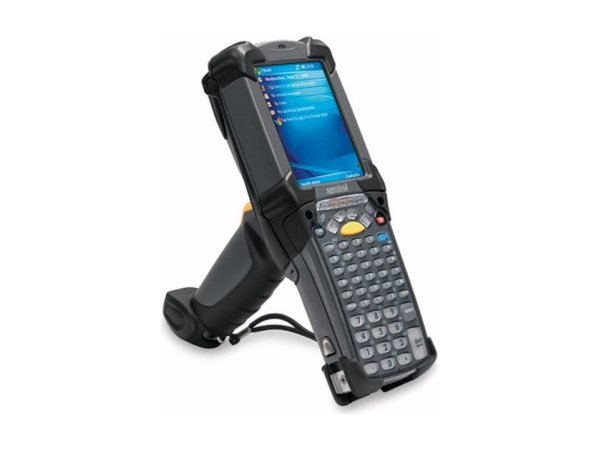
MC9200
- Amber flashing fast
- Safe Battery Swap
- Cold boot
-
Mobile computer
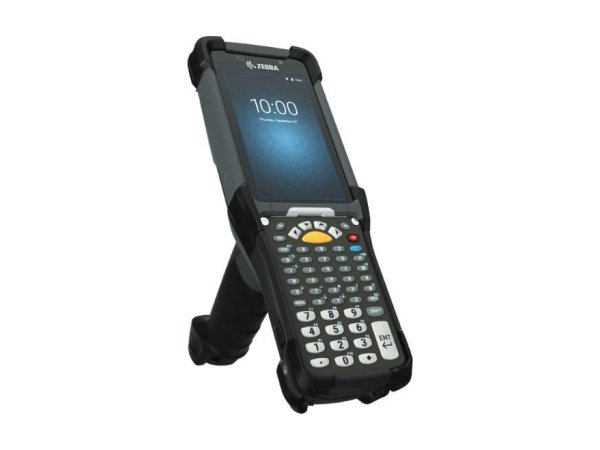
MC9300
- Light flashing, mobile computer off
- Flashing red light
- Laser not coming on
-
Mobile computer
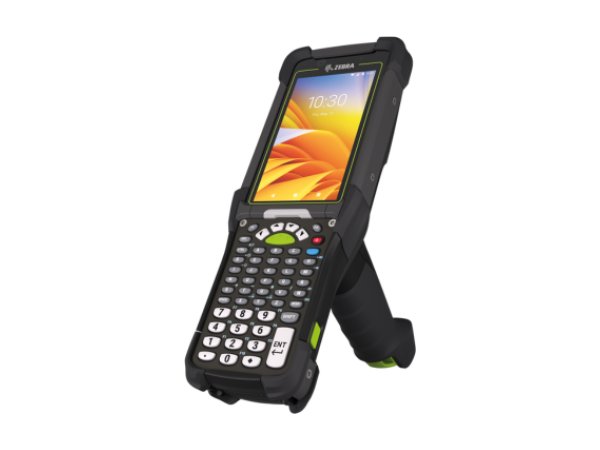
MC9400
- Flashing red light
- Condensation in cold storage
- The scanner does not scan
-
Mobile computer
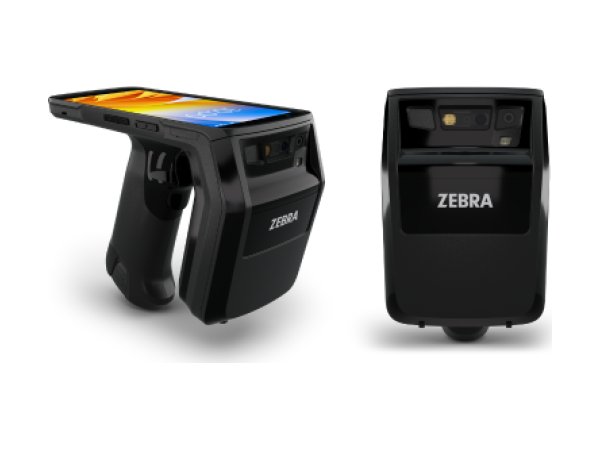
TC22R
- Fast flashing orange
- Red light (battery at end of life)
- Upper RFID trigger
-
Mobile computer
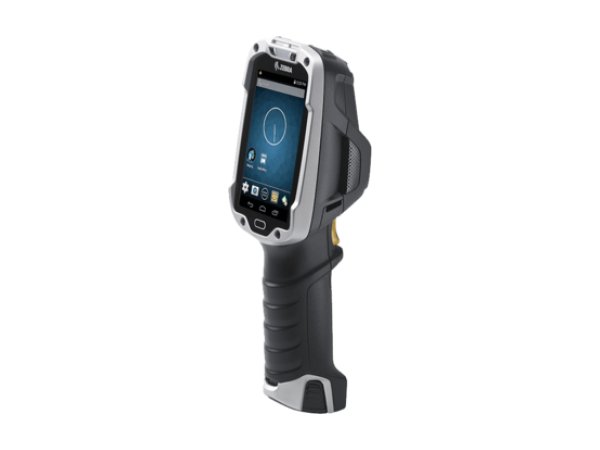
TC8000
- Flashing red light
- Solid red while charging
- Hard reset
-
Mobile computer
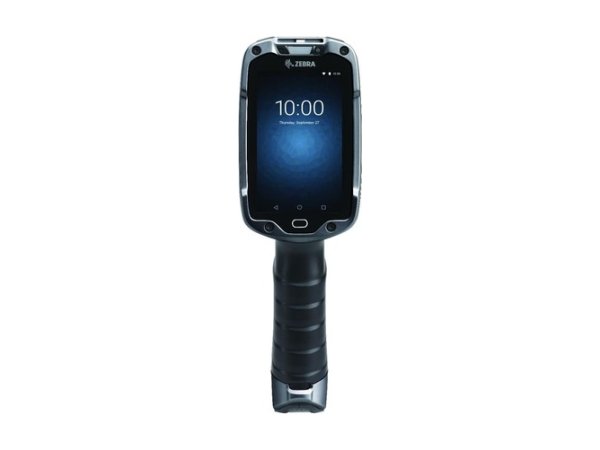
TC8300
- Flashing red light
- Red Wear in Battery Manager
- Hot Swap
Zebra beeps, lights and messages: meaning and first action
The signals below are described in the documentation for several Zebra models. The detailed entry for each model gives the exact procedure.
| Signal | Meaning | What to do first | Models |
|---|---|---|---|
| 4 long low beeps red light | Transmission error: the barcode is read, but the data is ignored. | Check the pairing with the base, the cables and the host interface. | |
| High, low, high, low low then high: entry error | Parameter saved after a programming barcode. The low then high sequence indicates an entry error or an incorrect sequence. | If there is an error, restart the barcode sequence from the beginning, in the order given in the guide. | |
| 2 low tones Device Status light solid red | Job error on a fixed-mount scanner. | Check the job in Zebra Aurora Focus, then the status of the scanner. | |
| Power light solid red at start-up green or amber: limited power | Low supply power. | Connect a full-power supply: 24 V, or 30 W PoE depending on the model. | |
| Low tone and fast red flashing about 5 Hz | Firmware update failed. | Restart the scanner, then run the update again. | |
| Red flash of the 360° ring no beep | Decode failure. | Check the focus, the distance, the lighting and the cleanliness of the window, then the job. | |
| Charging light fast flashing red amber (MC3200, MC9190-G, MC9200) or orange (TC22R) | Charging error: temperature out of range, charging taking too long without completing (about 8 hours) or mobile computer not seated correctly. | Charge between 0 and 40 °C, reseat the mobile computer, restart charging. | |
| Charging light solid red | Battery has reached the end of its useful life. | Replace the battery; on several models, its wear can be read in Battery Manager. | |
| Charging light off | The mobile computer is not charging: not inserted correctly, or cradle or charger not powered. | Check the power supply to the cradle, then reinsert the mobile computer. | |
| Slow flashing orange or amber | Battery completely empty, not yet sufficiently recharged (MC3300, MC9300, MC9400; on the last two, also hot swap mode). On MC3200, MC9190-G, MC9200 and TC22R, this rhythm indicates normal charging. | Leave the mobile computer on its cradle until the light changes. | |
| Orange or amber flashing after the battery is removed | Hot swap mode: the wireless connection is maintained for about 30 seconds (MC3300ax, MC3300x, MC3400); on the MC9300 and MC9400, RAM is retained for about 5 minutes. | Insert a charged battery: within 30 seconds to keep the wireless connection (MC3300ax, MC3300x, MC3400), within 5 minutes to keep the memory (MC9300, MC9400). | |
| Brief flash at power-on | The battery does not have enough charge to start the mobile computer. | Place the mobile computer on a powered cradle or install a charged battery. | |
| Flashing blue light | Notification from an application, or Bluetooth device connected: this is not a fault. | Check the notifications. |
Signals found in the Zebra documentation. The entry for each model gives the full procedure and its sources.
No signal? The most common symptoms on Zebra scanners and mobile computers
These guides cover one symptom across all brands; the Zebra models concerned are shown on each card.
-
Why has my barcode scanner stopped reading barcodes?
In the manufacturers' documentation, three causes keep coming up: the barcode type (symbology) is not enabled, the reading distance or angle is not right, or the scan window is dirty. Test first with a barcode of the same type in good condition.
- DS3600
- FS10
- FS20
- FS40 / FS70
- MC3200
- MC3300
- MC3300ax
- MC3300x
- MC3400
- MC9190-G
- MC9200
- MC9300
- MC9400
- TC22R
- TC8000
- TC8300
-
Why is my barcode scanner sending the wrong characters?
In keyboard emulation, many scanners leave the factory set to the American (US) keyboard. On an AZERTY host computer, digits turn into accented letters or symbols: program the keyboard country “France” on the scanner.
Read the full guide -
Why does my scanner beep but nothing appears?
The barcode is read, but the data does not reach the application: interface programmed incorrectly (USB keyboard or virtual serial port), link with the base broken, or, on a mobile computer, keyboard input (wedge) disabled.
Read the full guide -
What do the error beeps and red light on my scanner mean?
Each manufacturer has its own signals: four long low beeps indicate a transmission error on a Zebra DS3600, three beeps when scanning indicate a cordless Honeywell Granit handheld scanner that is not linked to its base. Note the exact signal, then check the table for your model.
Read the full guide -
Why is my cordless scanner no longer communicating with its base?
The scanner is not paired, or no longer paired, with its base, the base is not powered or not connected to the host computer, or the scanner is out of range. Depending on the model, you pair it again by placing the scanner on its base or by scanning the base's pairing barcode.
Read the full guide -
Why is the battery in my scanner or mobile computer not charging?
Manufacturers first cite a temperature outside the charging range (most often 0 to 40 °C or 0 to 45 °C, but 0 to 35 °C or 5 to 35 °C on some models), then a battery at the end of its life or not approved, or a faulty cradle or power supply. The charging light often shows which case applies.
Read the full guide -
How do I reset a barcode scanner or mobile computer?
A handheld scanner returns to its factory settings when you scan the reset barcode in its guide; a mobile computer is reset from its settings or its recovery menu. A factory reset of a mobile computer erases its data.
- DS3600
- FS10
- FS20
- FS40 / FS70
- MC3200
- MC3300
- MC3300ax
- MC3300x
- MC3400
- MC9190-G
- MC9200
- MC9300
- MC9400
- TC22R
- TC8000
- TC8300
-
Why has the scanner on my mobile computer stopped reading?
On a mobile computer, scanning goes through a manufacturer application (DataWedge on Zebra, ReaderConfig on CipherLab, Datalogic Settings…): a disabled scanner or a symbology that is not enabled explains many cases. Test in the manufacturer's test application.
Read the full guide -
Why is my mobile computer losing Wi-Fi?
The guides cite bands or security that the mobile computer does not support, unsuitable roaming settings, Wi-Fi power saving mode and captive portal detection. First compare your access points with the mobile computer's data sheet.
Read the full guide -
Why won't my mobile computer turn on?
The most documented case is a battery that is too deeply discharged: several mobile computers refuse to start until it has recharged enough. Leave the mobile computer on its cradle for several hours; if it stays frozen, a forced restart specific to the model brings it back.
Read the full guide
Three checks before calling a technician
They cover the checks most often cited in the documentation for Zebra models.
- Is the barcode type enabled?Not all symbologies are enabled at the factory: check the one for your barcode in the settings of the scanner or of the scanning application.
- Do the interface and keyboard country match the host computer?Keyboard emulation or virtual serial port, country “France” for an AZERTY host computer: the two settings to check first when the data arrives incorrectly.
- Are the link and the battery in good order?Scanner paired with its base, base powered, battery charged within the temperature range given in the guide.
The most common faults on Zebra scanners and mobile computers
Breakdown of the 365 documented problems by category. Battery and charging (72) and beeps, lights and error messages (54) come first.
Maintenance and repair of Zebra scanners and mobile computers
When a problem persists after an adjustment, a recharge or a reset, or when Zebra refers you to support, TIMCOD teams take over: hotline, repair, express exchange and preventive maintenance contracts.
Maintenance contract
Preventive maintenance (battery replacement, Wi-Fi audit, device checks, detailed report) and corrective maintenance (phone support, repair, express exchange). Essentiel, Confort or Premium plans.
See the contractsRepair request
Zebra scanner or mobile computer out of order? Give the model and the problem in the repair request form (in French) and our team will get back to you.
Request a repairQuote or out-of-contract service
Device bought elsewhere, a fleet to bring up to date or a contract to set up: describe what you need and our team will get back to you.
Contact us
Also at TIMCOD (in French)
Zebra scanners and mobile computers: frequently asked questions
What do four long beeps mean on a Zebra DS3600 scanner?
According to Zebra, four long low beeps indicate a transmission error: the barcode has been read, but the data is ignored. Check the pairing with the base, the cables and the host interface selected. See the guide for your model.
How do I pair a Zebra DS3678 scanner with its base?
Zebra has you scan the base's pairing barcode. If the scanner still sends nothing, check the cable between the base and the host computer, then the host interface.
How do I set up a Zebra scanner for an AZERTY host computer?
On the DS3600, scan the barcode for the correct interface, then the barcode for your host computer's keyboard country, in appendix B of the product reference guide. On the FS10, FS40 and FS70, the “French” language is set with a programming barcode or in Aurora Focus.
How do I force a Zebra mobile computer to restart?
The combination depends on the model: Power alone for at least 16 seconds on the MC9300, trigger, Power and Scan for at least 6 seconds on the MC9400. It is given in each mobile computer's guide.
Sources consulted
The official Zebra documents most cited in this brand's guides. Each model guide lists all its documents.
- Maintenance: Approved Cleaning Agents, Tolerable Industrial Fluids and Chemicals, Cleaning the Device (p. 51-52) – FS10/xS20 Smart Camera Product Reference Guide (MN-004336-02EN Rev A, 2025) (opens in a new window) official
- Maintenance: Known Harmful Ingredients, Approved Cleaning Agents, Cleaning the Device (p. 84-85) – FS/VS 40/70 Smart Camera Product Reference Guide (MN-003810-03EN Rev A, 2025) (opens in a new window) official
- Using a Bluetooth Headset – MC9190-G User Guide (72E-140936-02) (opens in a new window) official
- Speaker Icon – MC92N0-G User Guide (72E-162536-07) (opens in a new window) official
- Updating Firmware on Multiple Devices – Zebra Aurora Focus 10.2 User Guide (MN-004665-12EN Rev A, 2026) (opens in a new window) official
- Using the Enterprise Keyboard – MC3300x Mobile Computer Product Reference Guide for Android 11 (MN-004219-01EN Rev A) (opens in a new window) official
- Configurations – MC33XX Integrator Guide for Android 7.1.2 Nougat (MN-003136-07) (opens in a new window) official
- Waking the Device – MC93XX Mobile Computer Product Reference Guide for Android 11 (MN-004165-03EN Rev A, PDF) (opens in a new window) official
Need a more reliable fleet of Zebra scanners or mobile computers?
During a preventive visit, your scanners and mobile computers are checked and cleaned one by one, minor faults are fixed and you receive a report; removable batteries are replaced every 18 to 24 months.
Explore maintenance contracts Request a quote