

 Unitech
Scanners and mobile computers · Unitech
Unitech
Scanners and mobile computers · Unitech
Unitech scanner and mobile computer troubleshooting: beeps, errors and fixes by model
Preventive battery replacement, Wi-Fi coverage audit and a general check of your scanners and mobile computers.
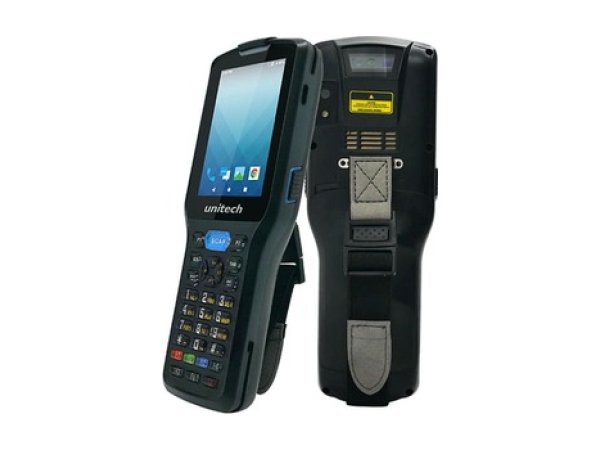
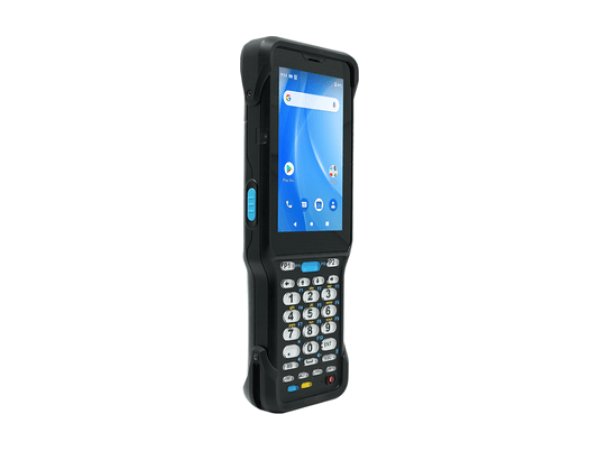
In brief. TIMCOD technicians have documented 64 problems across 3 Unitech scanners and mobile computers: handheld scanners (MS852B) and mobile computers (HT380, HT730). Scanning is configured in Unitech Scan Service (USS) on the HT730, and in the scanner configuration application (“Scanner Manager” or “Scanner Setting” depending on the document) on the HT380; the MS852B handheld scanner shows its status through its lights, those of its base and its beeps. Each guide links the model's beeps, lights and messages to their cause, then gives the manufacturer's procedure.
Examples:
Unitech troubleshooting guides by model
Each guide lists the model's beeps, lights and messages, then one entry per fault: cause, steps to follow, and when a technician is needed.
Unitech handheld scanners 1 model
-
Handheld scanner
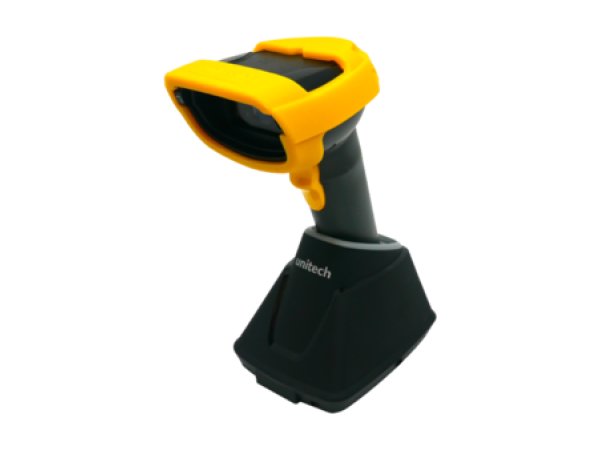
MS852B
- Solid green light
- 3 beeps at power-on
- Fast blue flashing
Unitech beeps, lights and messages: meaning and first action
The signals below are described in the documentation for several Unitech models. The detailed entry for each model gives the exact procedure.
| Signal | Meaning | What to do first | Models |
|---|---|---|---|
| Red light flashing every 2 seconds fast flashing: less than 5% | Handheld scanner battery below 10%. | Recharge the handheld scanner. | |
| 3 beeps at power-on 1 beep: Auto; 2 beeps: Wedge | Batch mode: scans are stored. | Send the scans with the “Send Batch” barcode, or change mode. | |
| 3 short beeps | Automatic shutdown in 15 seconds, after a period of inactivity. | If necessary, adjust or disable automatic shutdown (15 minutes by default). | |
| Solid green light when not charging | Handheld scanner paired, but disconnected from the host. | Move the handheld scanner closer to its base. | |
| Fast flashing blue light blue alternating every second: pairing mode | Handheld scanner connected, but signal too weak. | Move the handheld scanner closer to its base. | |
| Base solid red | Base powered, but it cannot see the host. | Check the cable and the interface selector on the base. | |
| Two red lights flashing together at power-on alternating, charger connected: battery missing or incorrectly installed | Battery below 15%. | Put the mobile computer on charge. | |
| Scan light flashing red | Decode failure. | Aim at the barcode within the reading range and check its symbology. |
Signals found in the Unitech documentation. The entry for each model gives the full procedure and its sources.
No signal? The most common symptoms on Unitech scanners and mobile computers
These guides cover one symptom across all brands; the Unitech models concerned are shown on each card.
-
Why has my barcode scanner stopped reading barcodes?
In the manufacturers' documentation, three causes keep coming up: the barcode type (symbology) is not enabled, the reading distance or angle is not right, or the scan window is dirty. Test first with a barcode of the same type in good condition.
Read the full guide -
Why is my barcode scanner sending the wrong characters?
In keyboard emulation, many scanners leave the factory set to the American (US) keyboard. On an AZERTY host computer, digits turn into accented letters or symbols: program the keyboard country “France” on the scanner.
Read the full guide -
Why does my scanner beep but nothing appears?
The barcode is read, but the data does not reach the application: interface programmed incorrectly (USB keyboard or virtual serial port), link with the base broken, or, on a mobile computer, keyboard input (wedge) disabled.
Read the full guide -
What do the error beeps and red light on my scanner mean?
Each manufacturer has its own signals: four long low beeps indicate a transmission error on a Zebra DS3600, three beeps when scanning indicate a cordless Honeywell Granit handheld scanner that is not linked to its base. Note the exact signal, then check the table for your model.
Read the full guide -
Why is my cordless scanner no longer communicating with its base?
The scanner is not paired, or no longer paired, with its base, the base is not powered or not connected to the host computer, or the scanner is out of range. Depending on the model, you pair it again by placing the scanner on its base or by scanning the base's pairing barcode.
Read the full guide -
Why is the battery in my scanner or mobile computer not charging?
Manufacturers first cite a temperature outside the charging range (most often 0 to 40 °C or 0 to 45 °C, but 0 to 35 °C or 5 to 35 °C on some models), then a battery at the end of its life or not approved, or a faulty cradle or power supply. The charging light often shows which case applies.
Read the full guide -
How do I reset a barcode scanner or mobile computer?
A handheld scanner returns to its factory settings when you scan the reset barcode in its guide; a mobile computer is reset from its settings or its recovery menu. A factory reset of a mobile computer erases its data.
Read the full guide -
Why has the scanner on my mobile computer stopped reading?
On a mobile computer, scanning goes through a manufacturer application (DataWedge on Zebra, ReaderConfig on CipherLab, Datalogic Settings…): a disabled scanner or a symbology that is not enabled explains many cases. Test in the manufacturer's test application.
Read the full guide -
Why is my mobile computer losing Wi-Fi?
The guides cite bands or security that the mobile computer does not support, unsuitable roaming settings, Wi-Fi power saving mode and captive portal detection. First compare your access points with the mobile computer's data sheet.
Read the full guide -
Why won't my mobile computer turn on?
The most documented case is a battery that is too deeply discharged: several mobile computers refuse to start until it has recharged enough. Leave the mobile computer on its cradle for several hours; if it stays frozen, a forced restart specific to the model brings it back.
Read the full guide
Three checks before calling a technician
They cover the checks most often cited in the documentation for Unitech models.
- Is the barcode type enabled?Not all symbologies are enabled at the factory: check the one for your barcode in the settings of the scanner or of the scanning application.
- Do the interface and keyboard country match the host computer?Keyboard emulation or virtual serial port, country “France” for an AZERTY host computer: the two settings to check first when the data arrives incorrectly.
- Are the link and the battery in good order?Scanner paired with its base, base powered, battery charged within the temperature range given in the guide.
The most common faults on Unitech scanners and mobile computers
Breakdown of the 64 documented problems by category. Connection (12) and battery and charging (12) come first.
Maintenance and repair of Unitech scanners and mobile computers
When a problem persists after an adjustment, a recharge or a reset, or when Unitech refers you to support, TIMCOD teams take over: hotline, repair, express exchange and preventive maintenance contracts.
Maintenance contract
Preventive maintenance (battery replacement, Wi-Fi audit, device checks, detailed report) and corrective maintenance (phone support, repair, express exchange). Essentiel, Confort or Premium plans.
See the contractsRepair request
Unitech scanner or mobile computer out of order? Give the model and the problem in the repair request form (in French) and our team will get back to you.
Request a repairQuote or out-of-contract service
Device bought elsewhere, a fleet to bring up to date or a contract to set up: describe what you need and our team will get back to you.
Contact us
Also at TIMCOD (in French)
Unitech scanners and mobile computers: frequently asked questions
What do three beeps at power-on mean on the Unitech MS852B handheld scanner?
The number of beeps at power-on indicates the mode: one beep for Auto, two for Wedge, three for Batch. In Batch mode, scans are stored in a batch file, which you send with the “Send Batch” barcode. See the guide for your model.
How do I restore a Unitech MS852B handheld scanner to factory settings?
Scan the “Factory Default” barcode in the “System Reset & Info” section of the manual: it restores the factory settings and erases the Bluetooth pairing. To keep the pairing, scan “Reset Setting” instead.
How do I reset a Unitech HT730 mobile computer?
Open Settings, System, Advanced, Reset options (on the HT730 Plus: Settings, System, Reset options), then “Erase all data (factory reset)”. Unitech states that all the data on the mobile computer is erased.
Sources consulted
The official Unitech documents most cited in this brand's guides. Each model guide lists all its documents.
- 1.7 LED / Beeper Indicator – MS852B User Manual V1.7 (opens in a new window) official
- 1.4.6 Using the Micro SD / Nano SIM Card – HT730 (29 keys) User's Manual V2.1 (opens in a new window) official
- 1.3 Keypad Definition – HT730 Plus (29 keys) User Manual V1.3 (opens in a new window) official
- Software – bringing up the soft keypad – HT730 FAQ (Unitech) (opens in a new window) official
- Power on/off – MS852B Bluetooth 2D Barcode Scanner Quick Start Guide V1.0 (opens in a new window) official
- OS – How do I update the OS over the air (OTA)? – HT380 FAQ (Unitech, 7 September 2022) (opens in a new window) official
- Battery and Memory Card – HT380 Quick Start Guide V1.3 (608349G) (opens in a new window) official
- 2.3 System Reset & Info – MS852B Plus User's Manual V1.7 (opens in a new window) official
Need a more reliable fleet of Unitech scanners or mobile computers?
During a preventive visit, your scanners and mobile computers are checked and cleaned one by one, minor faults are fixed and you receive a report; removable batteries are replaced every 18 to 24 months.
Explore maintenance contracts Request a quote